Source Code
<div class="demo">
  <button class="run-btn" id="runBtn">Run bulk export (6 items)</button>

  <div class="batch-panel" id="batchPanel" hidden>
    <div class="batch-header">
      <span class="batch-title">Exporting 6 items</span>
      <span class="batch-summary" id="batchSummary">0 / 6 complete</span>
    </div>
    <div class="batch-bar-track"><div class="batch-bar-fill" id="batchBarFill"></div></div>
    <ul class="batch-list" id="batchList"></ul>
    <div class="batch-footer" id="batchFooter" hidden>
      <span id="batchFooterText"></span>
      <button class="retry-btn" id="retryFailedBtn" hidden>Retry failed</button>
    </div>
  </div>
</div>
* { box-sizing: border-box; margin: 0; padding: 0; }
body { font-family: system-ui, sans-serif; background: #f8fafc; display: flex; align-items: center; justify-content: center; min-height: 100vh; padding: 24px; }
.demo { width: 380px; max-width: 100%; display: flex; flex-direction: column; gap: 14px; }
.run-btn { padding: 10px 20px; border: none; border-radius: 10px; background: #4f46e5; color: #fff; font-size: 13.5px; font-weight: 700; cursor: pointer; font-family: inherit; }
.run-btn:hover:not(:disabled) { background: #4338ca; }
.run-btn:disabled { opacity: 0.5; cursor: not-allowed; }
.batch-panel { background: #fff; border: 1px solid #e2e8f0; border-radius: 16px; padding: 18px; display: flex; flex-direction: column; gap: 12px; }
.batch-header { display: flex; align-items: center; justify-content: space-between; }
.batch-title { font-size: 13px; font-weight: 700; color: #111827; }
.batch-summary { font-size: 11.5px; font-weight: 700; color: #6366f1; }
.batch-bar-track { height: 6px; border-radius: 999px; background: #f1f5f9; overflow: hidden; }
.batch-bar-fill { height: 100%; background: linear-gradient(90deg,#6366f1,#8b5cf6); width: 0%; transition: width 0.3s ease; }
.batch-list { display: flex; flex-direction: column; gap: 6px; list-style: none; max-height: 220px; overflow-y: auto; }
.batch-item { display: flex; align-items: center; gap: 9px; padding: 8px 10px; border-radius: 9px; background: #f8fafc; font-size: 12.5px; color: #334155; }
.batch-icon { width: 18px; height: 18px; flex-shrink: 0; border-radius: 50%; display: flex; align-items: center; justify-content: center; font-size: 10px; }
.batch-item.pending .batch-icon { background: #e2e8f0; color: #94a3b8; }
.batch-item.running .batch-icon { background: #eef2ff; color: #6366f1; animation: spin 0.8s linear infinite; }
.batch-item.done .batch-icon { background: #ecfdf5; color: #10b981; }
.batch-item.failed .batch-icon { background: #fef2f2; color: #ef4444; }
@keyframes spin { to { transform: rotate(360deg); } }
.batch-item-name { flex: 1; }
.batch-item-status { font-size: 10.5px; font-weight: 700; text-transform: uppercase; letter-spacing: 0.3px; color: #94a3b8; }
.batch-item.failed .batch-item-status { color: #ef4444; }
.batch-item.done .batch-item-status { color: #10b981; }
.batch-footer { display: flex; align-items: center; justify-content: space-between; padding-top: 10px; border-top: 1px solid #f1f5f9; font-size: 12px; color: #64748b; }
.retry-btn { border: none; background: #fef2f2; color: #b91c1c; font-size: 11.5px; font-weight: 700; padding: 6px 12px; border-radius: 8px; cursor: pointer; font-family: inherit; }
.retry-btn:hover { background: #fee2e2; }const runBtn = document.getElementById('runBtn');
const panel = document.getElementById('batchPanel');
const list = document.getElementById('batchList');
const barFill = document.getElementById('batchBarFill');
const summary = document.getElementById('batchSummary');
const footer = document.getElementById('batchFooter');
const footerText = document.getElementById('batchFooterText');
const retryBtn = document.getElementById('retryFailedBtn');
const ITEMS = [
{ id: 1, name: 'Q1-report.pdf' },
{ id: 2, name: 'Q2-report.pdf' },
{ id: 3, name: 'customer-list.csv' },
{ id: 4, name: 'invoice-archive.zip' },
{ id: 5, name: 'analytics-dump.json' },
{ id: 6, name: 'team-roster.xlsx' },
];
// Every item independently ends in one of exactly three terminal states:
// done, failed, or (implicitly, if the batch is interrupted) still pending.
// Nothing about one item's outcome affects how the others are processed —
// each is tracked and rendered completely independently.
let itemStates = {};
function renderList() {
list.innerHTML = ITEMS.map((item) => {
const state = itemStates[item.id] || 'pending';
const icon = { pending: '', running: '', done: '✓', failed: '!' }[state];
const label = { pending: 'Waiting', running: 'Exporting…', done: 'Done', failed: 'Failed' }[state];
return `
<li class="batch-item ${state}">
<span class="batch-icon">${icon}</span>
<span class="batch-item-name">${item.name}</span>
<span class="batch-item-status">${label}</span>
</li>
`;
}).join('');
}
function updateSummary() {
const states = Object.values(itemStates);
const doneCount = states.filter((s) => s === 'done' || s === 'failed').length;
const failedCount = states.filter((s) => s === 'failed').length;
summary.textContent = `${doneCount} / ${ITEMS.length} complete`;
barFill.style.width = (doneCount / ITEMS.length) * 100 + '%';
if (doneCount === ITEMS.length) {
footer.hidden = false;
if (failedCount > 0) {
footerText.textContent = `${ITEMS.length - failedCount} succeeded, ${failedCount} failed.`;
retryBtn.hidden = false;
} else {
footerText.textContent = 'All items exported successfully.';
retryBtn.hidden = true;
}
runBtn.disabled = false;
}
}
function simulateItem(item) {
return new Promise((resolve) => {
itemStates[item.id] = 'running';
renderList();
const delay = 500 + Math.random() * 900;
setTimeout(() => {
// Simulated ~25% failure rate per item, independent of every other item —
// a real implementation would replace this with the actual export request
// for that one item and resolve based on its real success/failure.
const failed = Math.random() < 0.25;
itemStates[item.id] = failed ? 'failed' : 'done';
renderList();
updateSummary();
resolve();
}, delay);
});
}
// Items run with limited concurrency (3 at a time) rather than either fully
// sequential (slow) or fully parallel (could overwhelm a real API) — a
// realistic middle ground for a genuine bulk operation.
async function runBatch(itemsToRun) {
const CONCURRENCY = 3;
const queue = [...itemsToRun];
async function worker() {
while (queue.length > 0) {
const item = queue.shift();
await simulateItem(item);
}
}
await Promise.all(Array.from({ length: CONCURRENCY }, worker));
}
runBtn.addEventListener('click', async () => {
runBtn.disabled = true;
panel.hidden = false;
footer.hidden = true;
itemStates = {};
ITEMS.forEach((item) => { itemStates[item.id] = 'pending'; });
renderList();
updateSummary();
await runBatch(ITEMS);
});
retryBtn.addEventListener('click', async () => {
const failedItems = ITEMS.filter((item) => itemStates[item.id] === 'failed');
retryBtn.hidden = true;
footer.hidden = true;
runBtn.disabled = true;
await runBatch(failedItems);
});Learn Coding Visually
Learn to code with interactive, live-preview playgrounds — HTML, CSS, JavaScript, React & more.
 HTML Playground42 lessons · Click-based · Live preview
 CSS PlaygroundLearn CSS with a live editor
 JavaScript Playground60 lessons · DOM · Async · Canvas
 React PlaygroundLearn React with a live code editor
 GSAP PlaygroundLearn GSAP animation interactively
 SVG Playground44 lessons · shapes · paths · animation
 SCSS Playground45 lessons · Sass modules · tokens
 Tailwind PlaygroundLearn Tailwind CSS with a live editor
 Bootstrap 5 Playground50 lessons · live preview
Batch Operation Progress Panel — Per-Item Success/Fail Tracking with Retry
Batch Operation Progress Panel — Per-Item Success/Fail Tracking · Dashboards · Plain HTML, CSS & JS · Live preview
What's included
Features
About this UI Snippet
Batch Operation Progress Panel — Tracking Every Item Independently, Correctly
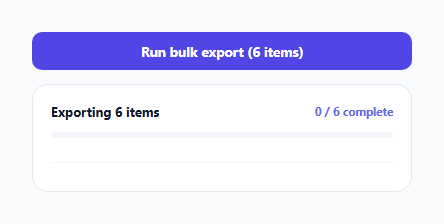
A single progress bar for a bulk operation ("Exporting… 60%") tells a user *something* is happening, but not *what* — if three of twenty items failed, a bare percentage bar can't communicate that, and a "try again" button has to retry the entire batch, including the seventeen items that already succeeded. This snippet tracks every item's status independently and renders it individually, so failures are visible per-item and retrying only re-runs what actually needs it.
Every item has its own state, tracked in a plain object keyed by id
itemStates maps each item's id to one of four states: pending, running, done, or failed. Nothing about the batch as a whole is stored as a single aggregate flag — the overall progress bar and summary text (updateSummary()) are entirely *derived* from counting how many individual items are in each state, recalculated fresh every time any single item's state changes. This is what makes it possible to show a genuine per-item breakdown rather than a single opaque percentage.
Limited concurrency — a realistic middle ground
runBatch() doesn't process items one at a time (slow, and it wastes the fact that most real export/upload operations are I/O-bound and can run several in parallel) and doesn't fire all of them simultaneously either (which could overwhelm a real backend API or exceed a browser's connection limit). Instead, it spins up a fixed number of worker() functions (here, 3) that each pull the next item off a shared queue and process it, one at a time, until the queue is empty — a standard bounded-concurrency pattern that keeps a batch of any size processing efficiently without unbounded parallelism.
Retry only touches what actually failed
retryBtn's click handler filters ITEMS down to just the ones whose current state is 'failed', and calls the exact same runBatch() function with only that subset. Because every item's state persists independently in itemStates across the whole session, the items that already succeeded are never touched again — no wasted re-work, and no risk of accidentally re-running (and potentially duplicating the effect of) an already-successful operation.
The progress bar and summary text are always in sync because they share one source of truth
Both the width of .batch-bar-fill and the "X / Y complete" text are computed inside the same updateSummary() call, from the same itemStates snapshot, every single time any item transitions state. There's no separate counter being incremented in parallel with the state object — the visual bar and the text summary can never drift apart from each other because they're two different renderings of the exact same underlying data.
Build with AI
Build, Understand, Optimize, and Extend It With AI
Ask an AI assistant to explain why deriving the progress bar and summary text from the same underlying item-state data (rather than maintaining a separately incremented counter) prevents them from ever disagreeing with each other, and to walk through exactly how the bounded-concurrency worker pool decides which item each worker processes next. It's also worth asking for a version that adds a cancel-in-progress action (aborting only the items not yet started), or one that shows a specific error message per failed item rather than a generic failure indicator.
Prompt to recreate it
Copy this into your AI assistant of choice to build the effect from scratch, or as a jumping-off point for your own variant:
Build a batch operation progress panel in HTML, CSS, and vanilla JavaScript — no external library.

Requirements:
- A list of at least six named items, each with its own visual status indicator that can independently show pending, running (with a spinner), done (success), or failed states — one item's outcome must never affect how any other item is processed or displayed.
- Process items with bounded concurrency: run a configurable fixed number of items in parallel (e.g. 3 at a time) via a worker-pool pattern pulling from a shared queue, rather than running everything fully sequentially or with fully unbounded parallelism.
- Simulate each item's processing with a random delay and a roughly 25% independent chance of failure, structured so it's clear where a real API call per item would be substituted in.
- Derive both an overall progress bar's fill percentage and a text summary ("X / Y complete") from the same underlying per-item state data every time any item's state changes, so the two can never show inconsistent information relative to each other.
- Once every item reaches a terminal (done or failed) state, show a footer summarizing exactly how many succeeded versus failed, and reveal a "Retry failed" button only if at least one item actually failed.
- Clicking "Retry failed" must re-run the batch process using only the items currently in a failed state, leaving already-succeeded items completely untouched and not reprocessed.
- Disable the main run button for the entire duration of an in-progress batch to prevent starting a second overlapping batch.
Want to tighten it up first? Run this prompt through the AI Prompt Studio to score it across 8 quality dimensions, catch anti-patterns, and tune the wording for Claude, ChatGPT, or Gemini before you paste it in.
Step by step
How to Use
- 1Click "Run bulk export"All six items start processing with bounded concurrency (three running at a time), each showing its own spinner while in progress.
- 2Watch items complete individuallyEach item independently lands on a done (green check) or failed (red exclamation) state — the outcome of one item never affects the others.
- 3Check the footer once the batch finishesShows an exact success/failure breakdown, and a "Retry failed" button appears only if at least one item actually failed.
- 4Click "Retry failed"Re-runs only the items still in a failed state — items that already succeeded are left untouched and are not re-processed.
- 5Adapt simulateItem() to a real requestReplace the setTimeout-based simulation with your actual per-item API call, resolving the promise based on that item's real success or failure.
Real-world uses
Common Use Cases
Got questions?
Frequently Asked Questions
No — every item is processed and tracked completely independently. One item failing has no effect on whether other items continue processing; the worker pool simply moves on to the next queued item regardless of the previous one's outcome.
Fully sequential processing wastes time when the underlying operations are I/O-bound and could run in parallel. Fully unbounded parallel processing risks overwhelming a real backend API or hitting browser connection limits. A fixed worker pool (here, 3 concurrent workers) balances throughput against not overloading the target system.
Only the items whose current state is "failed" are included in a retry batch — items that already succeeded keep their "done" state and are never re-processed, avoiding wasted work or accidental duplicate effects.
It's the count of items in a terminal state (done or failed) divided by the total item count — both the bar width and the "X / Y complete" text are derived from this same calculation inside updateSummary(), so they always stay consistent with each other.
Replace the body of simulateItem() with your actual async request for that one item (e.g. a fetch call), keeping the same pattern of setting itemStates[item.id] to "running" before the request and to "done" or "failed" based on the request's actual outcome once it resolves or rejects.
The run button is disabled for the full duration of the batch (from the moment it starts until every item reaches a terminal state), preventing a second overlapping batch from being started accidentally.