Source Code
<div class="calc">
<div class="calc-screen">
<div class="calc-history" id="calcHistory"> </div>
<div class="calc-display" id="calcDisplay">0</div>
</div>
<div class="calc-keys">
<button class="calc-key fn" onclick="press('C')">AC</button>
<button class="calc-key fn" onclick="press('±')">±</button>
<button class="calc-key fn" onclick="press('%')">%</button>
<button class="calc-key op" data-op="÷" onclick="press('÷')">÷</button>
<button class="calc-key" onclick="press('7')">7</button>
<button class="calc-key" onclick="press('8')">8</button>
<button class="calc-key" onclick="press('9')">9</button>
<button class="calc-key op" data-op="×" onclick="press('×')">×</button>
<button class="calc-key" onclick="press('4')">4</button>
<button class="calc-key" onclick="press('5')">5</button>
<button class="calc-key" onclick="press('6')">6</button>
<button class="calc-key op" data-op="−" onclick="press('−')">−</button>
<button class="calc-key" onclick="press('1')">1</button>
<button class="calc-key" onclick="press('2')">2</button>
<button class="calc-key" onclick="press('3')">3</button>
<button class="calc-key op" data-op="+" onclick="press('+')">+</button>
<button class="calc-key zero" onclick="press('0')">0</button>
<button class="calc-key" onclick="press('.')">.</button>
<button class="calc-key eq" onclick="press('=')">=</button>
</div>
</div>*{box-sizing:border-box;margin:0;padding:0}
body{font-family:system-ui,-apple-system,sans-serif;background:#0f172a;min-height:100vh;display:flex;align-items:center;justify-content:center;padding:24px}
.calc{width:300px;background:#1e293b;border:1px solid #334155;border-radius:22px;padding:18px;box-shadow:0 22px 55px rgba(0,0,0,.45)}
.calc-screen{text-align:right;padding:14px 12px 18px;min-height:96px;display:flex;flex-direction:column;justify-content:flex-end;overflow:hidden}
.calc-history{font-size:14px;color:#64748b;font-weight:600;height:18px;white-space:nowrap;overflow:hidden;text-overflow:ellipsis;font-variant-numeric:tabular-nums}
.calc-display{font-size:46px;font-weight:700;color:#f1f5f9;line-height:1.1;white-space:nowrap;overflow:hidden;text-overflow:ellipsis;font-variant-numeric:tabular-nums}
.calc-keys{display:grid;grid-template-columns:repeat(4,1fr);gap:10px}
.calc-key{height:60px;border:none;border-radius:16px;background:#334155;color:#f1f5f9;font-size:22px;font-weight:600;cursor:pointer;font-family:inherit;transition:filter .12s,transform .06s}
.calc-key:hover{filter:brightness(1.15)}
.calc-key:active{transform:scale(.93)}
.calc-key.fn{background:#475569;color:#e2e8f0;font-size:19px}
.calc-key.op{background:#6366f1;color:#fff;font-size:24px}
.calc-key.op.active{background:#fff;color:#6366f1}
.calc-key.eq{background:#10b981;color:#fff}
.calc-key.zero{grid-column:span 2;text-align:left;padding-left:24px}var cur = '0', prev = null, op = null, fresh = true;
var display = document.getElementById('calcDisplay');
var history = document.getElementById('calcHistory');
function fmt(n) {
var r = Math.round(n * 1e10) / 1e10;
if (!isFinite(r)) return 'Error';
return String(r);
}
function refresh() {
display.textContent = cur.length > 12 ? parseFloat(cur).toPrecision(8) : cur;
history.innerHTML = (prev !== null && op) ? (fmt(prev) + ' ' + op) : ' ';
document.querySelectorAll('.calc-key.op').forEach(function (b) {
b.classList.toggle('active', op !== null && fresh && b.dataset.op === op);
});
}
function compute() {
var a = prev, b = parseFloat(cur), r = b;
if (op === '+') r = a + b;
else if (op === '−') r = a - b;
else if (op === '×') r = a * b;
else if (op === '÷') r = b === 0 ? NaN : a / b;
cur = fmt(r);
prev = isFinite(r) ? r : null;
}
function press(key) {
if (/[0-9]/.test(key)) {
if (fresh) { cur = key; fresh = false; }
else { cur = cur === '0' ? key : cur + key; }
} else if (key === '.') {
if (fresh) { cur = '0.'; fresh = false; }
else if (cur.indexOf('.') === -1) cur += '.';
} else if (key === '+' || key === '−' || key === '×' || key === '÷') {
if (op !== null && !fresh) compute();
prev = parseFloat(cur);
op = key;
fresh = true;
} else if (key === '=') {
if (op !== null) { compute(); op = null; prev = null; fresh = true; }
} else if (key === 'C') {
cur = '0'; prev = null; op = null; fresh = true;
} else if (key === '±') {
cur = fmt(parseFloat(cur) * -1);
} else if (key === '%') {
cur = fmt(parseFloat(cur) / 100);
}
refresh();
}
document.addEventListener('keydown', function (e) {
var k = e.key;
if (/[0-9.]/.test(k)) press(k);
else if (k === '+') press('+');
else if (k === '-') press('−');
else if (k === '*') press('×');
else if (k === '/') { e.preventDefault(); press('÷'); }
else if (k === 'Enter' || k === '=') press('=');
else if (k === 'Escape') press('C');
else if (k === '%') press('%');
});
refresh();Learn Coding Visually
Learn to code with interactive, live-preview playgrounds — HTML, CSS, JavaScript, React & more.
 HTML Playground42 lessons · Click-based · Live preview
 CSS PlaygroundLearn CSS with a live editor
 JavaScript Playground60 lessons · DOM · Async · Canvas
 React PlaygroundLearn React with a live code editor
 GSAP PlaygroundLearn GSAP animation interactively
 SVG Playground44 lessons · shapes · paths · animation
 SCSS Playground45 lessons · Sass modules · tokens
 Tailwind PlaygroundLearn Tailwind CSS with a live editor
 Bootstrap 5 Playground50 lessons · live preview
Calculator — Keypad UI HTML CSS JS Snippet
Calculator · Forms · Plain HTML, CSS & JS · Live preview
What's included
Features
cur, prev, op, and fresh model the whole calculator; press dispatches every key through it for correct, predictable behaviour.Math.round(n * 1e10) / 1e10, so 0.1 + 0.2 shows 0.3 instead of a long binary artefact.Infinity or NaN.prev op so the in-progress operation is always visible above the current value.toPrecision and the display ellipsises, so values never break the layout.keydown map routes physical keys (digits, + - * /, Enter, Esc, %) through the same press function as the buttons.About this UI Snippet
Calculator — Chained-Operation Engine, Operator Highlight & Keyboard Support
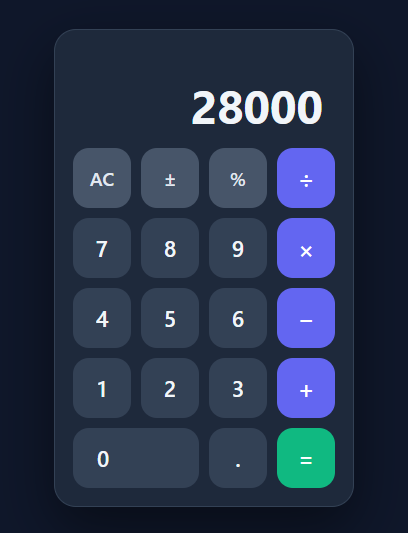
A calculator is a deceptively rich UI exercise: the keypad is easy, but the state machine behind it — chaining operations, replacing a pending operator, handling decimals, percentages, sign flips, and divide-by-zero — is where most clones break. This snippet implements a genuinely working calculator in plain HTML, CSS, and vanilla JavaScript: a clean keypad, a two-line screen, a chained-operation engine, an active-operator highlight, error handling, and full physical-keyboard support.
The classic four-variable state machine
State is just four values: cur (the string being typed), prev (the stored operand), op (the pending operator), and fresh (whether the next digit starts a new number). press dispatches every key through this model. Digits append to cur unless fresh is set, in which case they start a new number — this single flag is what makes typing after an operator or an equals behave correctly. The decimal key guards against multiple dots. This is the time-tested model real calculators use, and it handles the tricky cases that naive "build an expression string and eval it" approaches get wrong.
Chained operations
Pressing an operator when one is already pending computes the intermediate result first (2 + 3 + 4 shows 5 then 9), exactly like a physical calculator, by calling compute before storing the new operator. compute applies prev op cur, rounds the result with Math.round(n * 1e10) / 1e10 to kill floating-point noise (so 0.1 + 0.2 is 0.3, not 0.30000000000000004), and detects non-finite results to show "Error" on divide-by-zero.
Two-line screen and operator highlight
The screen shows a small history line (prev op) above the large current value, so users can see the operation in progress. The active operator key highlights (inverts colour) while it is pending and fresh is true, a small affordance that prevents the "which operator did I press?" confusion. Long results fall back to toPrecision so they never overflow the display.
Two-line screen and operator highlight
The screen shows a small history line above the large current value, so users can see the operation in progress (prev op) while typing the next operand. The current value falls back to toPrecision(8) when it grows beyond twelve characters and the display ellipsises, so a long or repeating result never breaks the layout. The pending operator key inverts its colour while it waits for the next number — a small affordance that answers the common "which operator did I press?" question without any extra UI.
Real keyboard support
A keydown listener maps physical keys to the same press function: digits and . directly, * / + - to the on-screen operators, Enter/= to equals, Escape to clear, and %. Because the mouse buttons and the keyboard both route through one press dispatcher, the two input paths can never diverge or get out of sync — a single source of truth for every key, which is exactly what keeps the state machine reliable.
It is a self-contained widget you can drop anywhere. Pair it with a tip calculator, a currency input for amounts, or a mortgage calculator for finance tools.
Build with AI
Build, Understand, Optimize, and Extend It With AI
You don't have to trace every branch of the press function by hand to see why this calculator behaves correctly. Paste this snippet's HTML, CSS, and JS into an AI coding assistant like Claude and ask it to explain exactly what role the fresh flag plays in deciding whether a digit key starts a new number or appends to the current one, and why compute is called before storing a new operator when one is already pending. The same assistant can help optimize it — asking whether the fmt function's rounding to 1e10 precision handles every edge case of repeating decimals, or whether the keydown listener could accidentally double-fire an action already triggered by a button's onclick. It's also useful for extending the calculator: ask it to add parenthesized expressions with real operator precedence, a running memory (M+/M-/MR) feature, or a calculation history panel. Treat the code less like a finished artifact and more like a starting point for a conversation.
Prompt to recreate it
Copy this into your AI assistant of choice to build the effect from scratch, or as a jumping-off point for your own variant:
Build a working calculator in plain HTML, CSS, and JavaScript that models a real four-function calculator's behavior (left-to-right chained operations, not full mathematical operator precedence) — no eval, no expression parser.

Requirements:
- Maintain exactly four pieces of state: the string currently being typed, the previously stored operand, the pending operator (or none), and a boolean flag indicating whether the next digit should start a fresh number or append to the current one.
- Route every single key press (digit, decimal point, operator, equals, clear, sign-flip, percent) through one shared dispatch function, so there is exactly one code path for both on-screen button clicks and physical keyboard input.
- When an operator is pressed while a different operator is already pending and the user isn't fresh off just having pressed an operator, compute the intermediate result first using the stored operand and the current typed value, so chained expressions like 2 + 3 + 4 show the intermediate 5 before continuing, matching real calculator behavior rather than deferring to full operator precedence.
- Round every computed result to eliminate floating-point representation noise (so 0.1 + 0.2 displays as 0.3, not a long trailing-digit artifact), and detect non-finite results (division by zero) to display a distinct "Error" state instead of Infinity or NaN.
- Show two display lines: a small history line above showing the stored operand and pending operator while a calculation is in progress, and a large current-value line below; long values must fall back to reduced precision formatting so they never overflow or wrap the display.
- Visually highlight whichever operator button is currently pending (and only while the calculator is in the "fresh" state awaiting the next number), and attach a global keydown listener mapping number keys, the four math symbols, Enter, Escape, and percent to the exact same dispatch function used by the on-screen buttons.
Want to tighten it up first? Run this prompt through the AI Prompt Studio to score it across 8 quality dimensions, catch anti-patterns, and tune the wording for Claude, ChatGPT, or Gemini before you paste it in.
Step by step
How to Use
- 1Paste HTML, CSS, and JSA dark calculator with a two-line screen and a 4-column keypad appears, showing "0".
- 2Do a calculationTap 1 2 × 6 = — the history line shows the operation and the display shows 72.
- 3Chain operationsType 2 + 3 + 4 — pressing the second + shows the intermediate 5, then = gives 9, like a real calculator.
- 4Use AC, ±, and %AC clears everything, ± flips the sign of the current number, and % divides it by 100.
- 5Type on your keyboardUse the number keys, + − * /, Enter for =, and Esc to clear — all routed through the same logic.
- 6See error handlingDivide by zero (e.g. 5 ÷ 0 =) and the display shows "Error" instead of Infinity.
Real-world uses
Common Use Cases
Got questions?
Frequently Asked Questions
eval is a security risk and gives surprising results for calculator-style chaining (it applies full operator precedence, whereas a basic calculator evaluates left-to-right as you press). The four-variable state machine here mirrors how physical calculators actually behave, avoids eval entirely, and correctly handles editing the current number, chaining, and re-pressing operators.
Replace the two-operand model with a tokeniser plus the shunting-yard algorithm to build Reverse Polish Notation, then evaluate the RPN stack. Show the full expression in the history line and only compute on =. This gives 2 + 3 × 4 = 14 (precedence) instead of the left-to-right 20 a basic calculator produces — choose based on whether you want a calculator or an expression evaluator.
This snippet caps the display with toPrecision(8) for long values. For scientific use, format with toExponential beyond a threshold, or use a big-number/decimal library to avoid IEEE-754 precision limits entirely. Always round display output (as done here) so accumulated floating-point error never shows.
Yes — the keys are real <button>s (focusable, Enter/Space activatable) and a global keydown map mirrors them, so it is fully operable without a mouse. For screen readers, add an aria-live="polite" on the display so results are announced, and give each key an aria-label where the glyph is ambiguous (e.g. ± as "plus or minus", ÷ as "divide").
In React, hold cur, prev, op, and fresh in useState (or a useReducer for the dispatch model) and render the display from them; attach the keydown listener in a useEffect with cleanup. In Vue, use refs and a press method. In Angular, keep the state on the component and a @HostListener('keydown'). The state machine logic ports verbatim.