Source Code
<div class="mec-phone">
<div class="mec-screen">
<div class="mec-status"><span>9:41</span><span class="mec-batt"><i></i></span></div>
<header class="mec-head">
<button class="mec-back" aria-label="Back">‹</button>
<h1>My Cart <span id="mecHeadCount" hidden></span></h1>
</header>
<div class="mec-scroll">
<div class="mec-empty" id="mecEmpty">
<div class="mec-illus">
<svg viewBox="0 0 120 100" width="120" height="100">
<circle cx="60" cy="50" r="46" fill="#eef2ff"/>
<rect x="34" y="42" width="52" height="34" rx="6" fill="#fff" stroke="#c7d2fe" stroke-width="2.5"/>
<path d="M42 42 v-6 a18 18 0 0 1 36 0 v6" fill="none" stroke="#818cf8" stroke-width="3"/>
<circle cx="50" cy="60" r="3.5" fill="#a5b4fc"/>
<circle cx="70" cy="60" r="3.5" fill="#a5b4fc"/>
</svg>
</div>
<h2>Your cart is empty</h2>
<p>Items you add will show up here. Start with something from your recently viewed list below.</p>
<button class="mec-cta" id="mecStartShopping">Start Shopping</button>
</div>
<div class="mec-filled" id="mecFilled" hidden>
<div class="mec-items" id="mecItems"></div>
<div class="mec-summary">
<div class="mec-sum-row"><span>Subtotal</span><b id="mecSubtotal">$0.00</b></div>
<div class="mec-sum-row"><span>Shipping</span><b>Free</b></div>
<div class="mec-sum-row total"><span>Total</span><b id="mecTotal">$0.00</b></div>
</div>
<button class="mec-checkout">Checkout</button>
</div>
<div class="mec-recent">
<p class="mec-recent-title">Recently viewed</p>
<div class="mec-recent-row" id="mecRecentRow">
<div class="mec-recent-item" data-id="1" data-name="Canvas Weekender Bag" data-price="68">
<div class="mec-recent-thumb r1"></div>
<b>Canvas Weekender</b><span>$68.00</span>
<button class="mec-add">+ Add</button>
</div>
<div class="mec-recent-item" data-id="2" data-name="Ceramic Pour-Over Set" data-price="42">
<div class="mec-recent-thumb r2"></div>
<b>Ceramic Pour-Over</b><span>$42.00</span>
<button class="mec-add">+ Add</button>
</div>
<div class="mec-recent-item" data-id="3" data-name="Merino Wool Beanie" data-price="29">
<div class="mec-recent-thumb r3"></div>
<b>Merino Beanie</b><span>$29.00</span>
<button class="mec-add">+ Add</button>
</div>
</div>
</div>
</div>
</div>
</div>*{box-sizing:border-box;margin:0;padding:0}
html{scrollbar-width:none;-ms-overflow-style:none}
html::-webkit-scrollbar{display:none}
body{font-family:system-ui,-apple-system,sans-serif;background:#1e293b;display:flex;justify-content:center;align-items:center;min-height:100vh;padding:24px;scrollbar-width:none;-ms-overflow-style:none}
body::-webkit-scrollbar{display:none}
.mec-phone{width:288px;height:600px;background:#0b1220;border-radius:46px;padding:12px;box-shadow:0 30px 60px -20px rgba(0,0,0,.6),inset 0 0 0 2px #1e293b}
.mec-screen{width:100%;height:100%;border-radius:34px;overflow:hidden;background:#fff;color:#0f172a;display:flex;flex-direction:column}
.mec-status{display:flex;justify-content:space-between;align-items:center;padding:13px 24px 0;font-size:13px;font-weight:700}
.mec-batt{width:22px;height:11px;border:1.4px solid currentColor;border-radius:3px;position:relative;display:inline-block}
.mec-batt::after{content:'';position:absolute;right:-3px;top:3px;width:2px;height:5px;background:currentColor;border-radius:0 1px 1px 0}
.mec-batt i{position:absolute;left:1.4px;top:1.4px;bottom:1.4px;width:70%;background:currentColor;border-radius:1px}
.mec-head{display:flex;align-items:center;gap:10px;padding:8px 14px 10px}
.mec-back{background:rgba(15,23,42,.06);border:none;width:30px;height:30px;border-radius:50%;font-size:19px;color:#0f172a;cursor:pointer}
.mec-head h1{font-size:16px;font-weight:800;display:flex;align-items:center;gap:6px}
.mec-head h1 span{background:#4f46e5;color:#fff;font-size:11px;font-weight:800;padding:1px 7px;border-radius:99px}
.mec-scroll{flex:1;overflow-y:auto;padding:6px 18px 20px;scrollbar-width:none;-ms-overflow-style:none}
.mec-scroll::-webkit-scrollbar{display:none}
.mec-empty{text-align:center;padding:20px 6px 28px}
.mec-illus{margin-bottom:6px}
.mec-empty h2{font-size:16px;font-weight:800;margin-bottom:8px}
.mec-empty p{font-size:12.5px;color:#64748b;line-height:1.6;max-width:220px;margin:0 auto 20px}
.mec-cta{background:#4f46e5;color:#fff;border:none;border-radius:12px;padding:12px 26px;font-size:13.5px;font-weight:700;cursor:pointer;font-family:inherit}
.mec-cta:hover{background:#4338ca}
.mec-items{margin-bottom:14px}
.mec-item{display:flex;align-items:center;gap:10px;background:#f8fafc;border-radius:12px;padding:10px;margin-bottom:9px;animation:mecPop .25s ease}
@keyframes mecPop{from{opacity:0;transform:scale(.9)}to{opacity:1;transform:scale(1)}}
.mec-item-thumb{width:44px;height:44px;border-radius:9px;flex-shrink:0}
.mec-item-info{flex:1;min-width:0}
.mec-item-info b{display:block;font-size:12px;white-space:nowrap;overflow:hidden;text-overflow:ellipsis}
.mec-item-info span{font-size:11.5px;color:#94a3b8}
.mec-item-price{font-size:12.5px;font-weight:800;color:#0f172a}
.mec-item-remove{background:none;border:none;color:#cbd5e1;font-size:16px;cursor:pointer;padding:2px 4px}
.mec-item-remove:hover{color:#ef4444}
.mec-summary{background:#f8fafc;border-radius:12px;padding:14px;margin-bottom:14px}
.mec-sum-row{display:flex;justify-content:space-between;font-size:12.5px;color:#64748b;margin-bottom:8px}
.mec-sum-row b{color:#0f172a;font-weight:700}
.mec-sum-row.total{border-top:1px solid #e2e8f0;padding-top:8px;margin-top:6px;margin-bottom:0}
.mec-sum-row.total span,.mec-sum-row.total b{font-size:14px;font-weight:800;color:#0f172a}
.mec-checkout{width:100%;background:#0f172a;color:#fff;border:none;border-radius:12px;padding:13px;font-size:13.5px;font-weight:800;cursor:pointer;font-family:inherit;margin-bottom:8px}
.mec-checkout:hover{background:#1e293b}
.mec-recent-title{font-size:11.5px;font-weight:800;text-transform:uppercase;letter-spacing:.5px;color:#94a3b8;margin-bottom:12px}
.mec-recent-row{display:flex;gap:10px;overflow-x:auto;padding-bottom:6px;scrollbar-width:none;-ms-overflow-style:none}
.mec-recent-row::-webkit-scrollbar{display:none}
.mec-recent-item{flex:0 0 108px;background:#fff;border:1px solid #f1f5f9;border-radius:12px;padding:10px;text-align:left;transition:opacity .2s}
.mec-recent-item.added{opacity:.45}
.mec-recent-thumb{width:100%;height:66px;border-radius:9px;margin-bottom:8px}
.r1{background:linear-gradient(135deg,#fcd34d,#f59e0b)}
.r2{background:linear-gradient(135deg,#93c5fd,#3b82f6)}
.r3{background:linear-gradient(135deg,#fca5a5,#ef4444)}
.mec-recent-item b{display:block;font-size:11.5px;margin-bottom:2px}
.mec-recent-item span{display:block;font-size:11px;color:#94a3b8;margin-bottom:8px}
.mec-add{width:100%;background:#eef2ff;color:#4f46e5;border:none;border-radius:8px;padding:6px;font-size:11.5px;font-weight:700;cursor:pointer;font-family:inherit}
.mec-add:disabled{background:#f1f5f9;color:#cbd5e1;cursor:not-allowed}var cart = [];
var emptyView = document.getElementById('mecEmpty');
var filledView = document.getElementById('mecFilled');
var itemsWrap = document.getElementById('mecItems');
var headCount = document.getElementById('mecHeadCount');
function render() {
var hasItems = cart.length > 0;
emptyView.hidden = hasItems;
filledView.hidden = !hasItems;
headCount.hidden = !hasItems;
headCount.textContent = cart.length;
itemsWrap.innerHTML = '';
cart.forEach(function (item) {
var row = document.createElement('div');
row.className = 'mec-item';
var thumb = document.createElement('div');
thumb.className = 'mec-item-thumb r' + (((item.id - 1) % 3) + 1);
var info = document.createElement('div');
info.className = 'mec-item-info';
info.innerHTML = '<b></b><span>Qty 1</span>';
info.querySelector('b').textContent = item.name;
var price = document.createElement('div');
price.className = 'mec-item-price';
price.textContent = '$' + item.price.toFixed(2);
var remove = document.createElement('button');
remove.className = 'mec-item-remove';
remove.setAttribute('aria-label', 'Remove');
remove.textContent = '\u00d7';
remove.addEventListener('click', function () { removeFromCart(item.id); });
row.appendChild(thumb);
row.appendChild(info);
row.appendChild(price);
row.appendChild(remove);
itemsWrap.appendChild(row);
});
var subtotal = cart.reduce(function (sum, item) { return sum + item.price; }, 0);
document.getElementById('mecSubtotal').textContent = '$' + subtotal.toFixed(2);
document.getElementById('mecTotal').textContent = '$' + subtotal.toFixed(2);
document.querySelectorAll('.mec-recent-item').forEach(function (card) {
var id = parseInt(card.getAttribute('data-id'), 10);
var inCart = cart.some(function (i) { return i.id === id; });
var btn = card.querySelector('.mec-add');
card.classList.toggle('added', inCart);
btn.disabled = inCart;
btn.textContent = inCart ? 'In cart' : '+ Add';
});
}
function addToCart(id, name, price) {
if (cart.some(function (i) { return i.id === id; })) return;
cart.push({ id: id, name: name, price: price });
render();
}
function removeFromCart(id) {
cart = cart.filter(function (i) { return i.id !== id; });
render();
}
document.querySelectorAll('.mec-recent-item .mec-add').forEach(function (btn) {
btn.addEventListener('click', function () {
var card = btn.closest('.mec-recent-item');
addToCart(
parseInt(card.getAttribute('data-id'), 10),
card.getAttribute('data-name'),
parseFloat(card.getAttribute('data-price'))
);
});
});
document.getElementById('mecStartShopping').addEventListener('click', function () {
var firstBtn = document.querySelector('.mec-recent-item .mec-add');
if (firstBtn) firstBtn.focus();
});
render();Learn Coding Visually
Learn to code with interactive, live-preview playgrounds — HTML, CSS, JavaScript, React & more.
 HTML Playground42 lessons · Click-based · Live preview
 CSS PlaygroundLearn CSS with a live editor
 JavaScript Playground60 lessons · DOM · Async · Canvas
 React PlaygroundLearn React with a live code editor
 GSAP PlaygroundLearn GSAP animation interactively
 SVG Playground44 lessons · shapes · paths · animation
 SCSS Playground45 lessons · Sass modules · tokens
 Tailwind PlaygroundLearn Tailwind CSS with a live editor
 Bootstrap 5 Playground50 lessons · live preview
Mobile Empty Cart Screen — Free HTML CSS JS Snippet
Mobile Empty Cart Screen · Mobile · Plain HTML, CSS & JS · Live preview
What's included
Features
About this UI Snippet
Mobile Empty Cart Screen — Empty State That Converts into a Working Cart
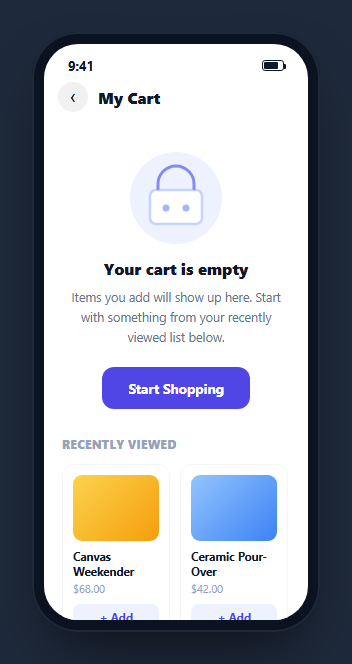
A empty cart screen has one job beyond looking friendly: give the user somewhere to go next. Most empty-state examples stop at the illustration and the "browse products" button; this snippet goes further by making the recommended items directly actionable, so tapping "Add" on a recently-viewed item actually transitions the screen from the empty state into a genuine, itemized cart with a running subtotal and total — the same screen doing double duty as both the empty state and its own resolution.
One state, two views, driven by data
Rather than treating "empty" and "has items" as two separate screens, both .mec-empty and .mec-filled live in the same DOM, and a single render() function decides which one is visible based on whether the cart array has any items — emptyView.hidden = hasItems. This means there is exactly one source of truth (the cart array) driving every piece of UI: which view shows, the header's item-count badge, the itemized list, the subtotal/total math, and even which "Add" buttons in the recently-viewed row are disabled because that item is already in the cart.
The illustration as inline SVG, not an image asset
The empty-state graphic — a shopping bag inside a soft circle — is drawn directly as inline SVG shapes (a circle, a rounded rectangle, a strap path, two "item dot" circles) rather than an imported illustration file. This keeps the component fully self-contained with zero image requests and means the illustration inherits the page's color system directly through fill and stroke values, rather than needing a separately-exported, separately-recolored asset.
Recently-viewed items double as the empty-state's call to action
Instead of a generic "Browse Products" button linking away from the cart entirely, the recently-viewed row sits directly beneath the empty state and its own + Add buttons let a user populate the cart without leaving the screen at all. Each recently-viewed card carries data-id, data-name, and data-price attributes that addToCart() reads directly — no separate product-data lookup needed, keeping the demo self-contained while mirroring how a real implementation would read the same attributes off server-rendered markup or a client-side product store.
Cart items and recently-viewed cards stay in sync
Adding an item does more than just insert a row into the cart list — render() also walks every recently-viewed card, checks whether its id is present in the cart array, and if so dims the card, disables its Add button, and relabels it "In cart." This prevents the confusing situation where a user could add the same recommended item twice, and gives a second visual confirmation (beyond the new cart row appearing) that the add succeeded.
Removing items reverts the state honestly
Each cart row's remove button calls removeFromCart(id), which filters the item out of the cart array and calls render() again — if that was the last item, the screen automatically flips back to the empty-state view, since hasItems is recalculated from the array's current length on every render rather than being tracked as a separate flag that could fall out of sync.
Build with AI
Build, Understand, Optimize, and Extend It With AI
Rather than tracing the render logic by hand, paste this snippet's HTML, CSS, and JS into an AI coding assistant like Claude and ask it to explain exactly how a single cart array drives every piece of UI on the screen — the empty/filled view toggle, the header badge, the itemized rows, the subtotal math, and the recently-viewed button states — all recomputed fresh on every render() call rather than tracked as separate flags. The same assistant can help you optimize it, for instance asking whether re-rendering the entire item list on every single add/remove is fine at this scale or whether a more targeted DOM update would matter for a much larger cart. It is also useful for extending the screen: ask it to add quantity steppers instead of a fixed quantity of one per item, persist the cart to localStorage so it survives a reload, or add a subtle animation when an item is removed instead of an instant disappearance. Treat the code less like a finished artifact and more like a starting point for a conversation.
Prompt to recreate it
Copy this into your AI assistant of choice to build the effect from scratch, or as a jumping-off point for your own variant:
Build a mobile "empty cart that becomes a working cart" screen in plain HTML, CSS, and JavaScript, framed inside a CSS phone mockup, driven entirely by one array of cart items — no library.

Requirements:
- An empty-cart view with an inline SVG illustration (not an image file), a friendly heading and message, and a "Start Shopping" button, shown only when a cart array is empty.
- A "Recently viewed" horizontal-scrolling row of at least three product cards below the empty state, each carrying its id, name, and price as data attributes and containing its own "+ Add" button.
- Clicking a recently-viewed item's Add button must add that item to the cart array and re-render the screen: the empty-state view must hide, a filled-cart view must appear showing an itemized list (thumbnail, name, price, remove button) plus a computed subtotal and total, and the header must show a badge with the current item count.
- Every recently-viewed card whose item is already in the cart must visually dim, disable its own Add button, and relabel it to indicate the item is already added — recomputed on every cart change, not just set once.
- Clicking a cart row's remove button must remove that item from the array and re-render; if that was the last item in the cart, the screen must automatically revert back to the empty-cart view with no separate manual toggle needed.
- All view visibility, the header badge, the itemized list, the subtotal/total numbers, and every recently-viewed button's disabled state must be derived fresh from the single cart array on every render, not tracked as independent flags.
Want to tighten it up first? Run this prompt through the AI Prompt Studio to score it across 8 quality dimensions, catch anti-patterns, and tune the wording for Claude, ChatGPT, or Gemini before you paste it in.
Step by step
How to Use
- 1Paste HTML, CSS, and JSThe empty-cart state renders inside a phone frame, with recently-viewed items below it.
- 2Tap "+ Add" on a recently-viewed itemThe screen transitions to a live cart view with that item, a subtotal, and a total.
- 3Add more itemsEach addition inserts a new row and updates the running total; the corresponding recently-viewed card dims and disables.
- 4Remove an itemTap the × on a cart row — if it was the last item, the screen reverts to the empty state automatically.
- 5Check the header badgeThe item count badge next to "My Cart" appears only once the cart has items.
- 6Wire it to a real storeReplace the local cart array with your actual cart state (context, store, or server session) while keeping the same render()-from-data pattern.
Real-world uses
Common Use Cases
Got questions?
Frequently Asked Questions
A single render() function checks whether the cart array has any items and sets emptyView.hidden = hasItems and filledView.hidden = !hasItems accordingly. There is no separate boolean state tracking this — it is derived fresh from the array\u2019s length on every render, so it can never fall out of sync with the actual cart contents.
removeFromCart() filters the removed item out of the array and calls render() again. Since hasItems is recalculated from the array\u2019s current length, an empty array automatically flips the view back to the empty state — there is no separate "was this the last item" special case to handle.
On every render, the code checks each recently-viewed card\u2019s data-id against the current cart array. If a match is found, that card is dimmed, its button is disabled, and its label changes to "In cart" — preventing the same recommended item from being added twice and confirming visually that the add succeeded.
No — it is drawn entirely with inline SVG shapes (a circle, a rounded rectangle for the bag body, a strap path, and two item dots), so the component makes zero image requests and the illustration\u2019s colors can be edited directly as SVG fill/stroke values in the CSS-adjacent markup.
On every render, Array.reduce sums the price field of every item currently in the cart array into a subtotal, which is also used directly as the total since shipping is treated as free in this demo. Both values are recomputed from scratch each render rather than incrementally updated, which keeps the math always correct regardless of how items were added or removed.
Replace the local cart JavaScript array with your actual cart state source (a React context, a global store, or a value fetched from a server session), and call the same render()-from-data pattern whenever that state changes. The addToCart and removeFromCart functions are natural places to instead dispatch actions or make API calls before triggering a re-render.