Source Code
<div class="mcl-phone">
  <div class="mcl-screen">
    <div class="mcl-status"><span>9:41</span><span class="mcl-batt"><i></i></span></div>
    <header class="mcl-head">
      <div><small>March 2026</small><h1>This week</h1></div>
      <div class="mcl-ava">AM</div>
    </header>

    <div class="mcl-week" id="mclWeek">
      <button class="mcl-day" data-day="Mon 9"><small>Mon</small><b>9</b><i class="mcl-mk"></i></button>
      <button class="mcl-day" data-day="Tue 10"><small>Tue</small><b>10</b><i class="mcl-mk"></i></button>
      <button class="mcl-day active" data-day="Wed 11"><small>Wed</small><b>11</b><i class="mcl-mk"></i></button>
      <button class="mcl-day" data-day="Thu 12"><small>Thu</small><b>12</b></button>
      <button class="mcl-day" data-day="Fri 13"><small>Fri</small><b>13</b><i class="mcl-mk"></i></button>
      <button class="mcl-day" data-day="Sat 14"><small>Sat</small><b>14</b></button>
      <button class="mcl-day" data-day="Sun 15"><small>Sun</small><b>15</b></button>
    </div>

    <div class="mcl-agenda" id="mclAgenda">
      <div class="mcl-slot" data-for="Wed 11">
        <div class="mcl-time">09:00</div>
        <div class="mcl-ev e1"><b>Team standup</b><small>Design squad · 30 min</small></div>
      </div>
      <div class="mcl-slot" data-for="Wed 11">
        <div class="mcl-time">11:30</div>
        <div class="mcl-ev e2"><b>Client review</b><small>Bella Napoli app · Zoom</small></div>
      </div>
      <div class="mcl-slot" data-for="Wed 11">
        <div class="mcl-time">15:00</div>
        <div class="mcl-ev e3"><b>Focus block</b><small>Prototype polish</small></div>
      </div>
      <div class="mcl-slot" data-for="Tue 10">
        <div class="mcl-time">10:00</div>
        <div class="mcl-ev e2"><b>1:1 with Jordan</b><small>Weekly sync · 30 min</small></div>
      </div>
      <div class="mcl-slot" data-for="Mon 9">
        <div class="mcl-time">13:00</div>
        <div class="mcl-ev e1"><b>Sprint planning</b><small>Whole team · 1 hr</small></div>
      </div>
      <div class="mcl-slot" data-for="Fri 13">
        <div class="mcl-time">16:30</div>
        <div class="mcl-ev e3"><b>Design critique</b><small>Portfolio review</small></div>
      </div>
      <p class="mcl-empty" id="mclEmpty" hidden>Nothing scheduled. Enjoy the free time! 🌤</p>
    </div>

    <button class="mcl-fab" id="mclFab" aria-label="Add event">+</button>
  </div>
</div>*{box-sizing:border-box;margin:0;padding:0}
html{scrollbar-width:none;-ms-overflow-style:none}
html::-webkit-scrollbar{display:none}
body{font-family:system-ui,-apple-system,sans-serif;background:#1e293b;display:flex;justify-content:center;align-items:center;min-height:100vh;padding:24px;scrollbar-width:none;-ms-overflow-style:none}
body::-webkit-scrollbar{display:none}
.mcl-phone{width:288px;height:600px;background:#0b1220;border-radius:46px;padding:12px;box-shadow:0 30px 60px -20px rgba(0,0,0,.6),inset 0 0 0 2px #1e293b}
.mcl-screen{width:100%;height:100%;border-radius:34px;overflow:hidden;background:#f1f5f9;color:#0f172a;display:flex;flex-direction:column;position:relative}
.mcl-status{display:flex;justify-content:space-between;align-items:center;padding:13px 24px 0;font-size:13px;font-weight:700}
.mcl-batt{width:22px;height:11px;border:1.4px solid currentColor;border-radius:3px;position:relative;display:inline-block}
.mcl-batt::after{content:'';position:absolute;right:-3px;top:3px;width:2px;height:5px;background:currentColor;border-radius:0 1px 1px 0}
.mcl-batt i{position:absolute;left:1.4px;top:1.4px;bottom:1.4px;width:70%;background:currentColor;border-radius:1px}
.mcl-head{display:flex;align-items:flex-end;justify-content:space-between;padding:8px 16px 12px}
.mcl-head small{font-size:12px;color:#94a3b8;font-weight:600}
.mcl-head h1{font-size:22px;font-weight:800}
.mcl-ava{width:36px;height:36px;border-radius:50%;background:linear-gradient(135deg,#6366f1,#ec4899);color:#fff;font-weight:800;font-size:13px;display:flex;align-items:center;justify-content:center}
.mcl-week{display:flex;gap:5px;padding:0 12px 14px}
.mcl-day{flex:1;border:none;background:#fff;border-radius:13px;padding:9px 0 8px;cursor:pointer;font-family:inherit;display:flex;flex-direction:column;align-items:center;gap:3px;position:relative;transition:background .15s}
.mcl-day small{font-size:9.5px;color:#94a3b8;font-weight:700}
.mcl-day b{font-size:15px;font-weight:800}
.mcl-mk{width:5px;height:5px;border-radius:50%;background:#6366f1;position:absolute;bottom:5px}
.mcl-day.active{background:#0f172a;color:#fff}
.mcl-day.active small{color:#94a3b8}
.mcl-day.active .mcl-mk{background:#fff}
.mcl-agenda{flex:1;overflow-y:auto;padding:0 16px 84px;scrollbar-width:none;-ms-overflow-style:none}
.mcl-agenda::-webkit-scrollbar{display:none}
.mcl-slot{display:flex;gap:12px;margin-bottom:12px;animation:mclIn .25s ease}
@keyframes mclIn{from{opacity:0;transform:translateY(6px)}to{opacity:1;transform:none}}
.mcl-time{font-size:11px;color:#94a3b8;font-weight:700;padding-top:12px;width:38px;flex-shrink:0;font-variant-numeric:tabular-nums}
.mcl-ev{flex:1;background:#fff;border-radius:13px;padding:11px 13px;border-left:4px solid #6366f1}
.mcl-ev.e1{border-left-color:#6366f1}
.mcl-ev.e2{border-left-color:#f59e0b}
.mcl-ev.e3{border-left-color:#22c55e}
.mcl-ev b{font-size:13.5px;display:block}
.mcl-ev small{font-size:11px;color:#94a3b8;margin-top:2px;display:block}
.mcl-empty{text-align:center;color:#94a3b8;font-size:13px;padding:36px 16px;line-height:1.5}
.mcl-fab{position:absolute;right:16px;bottom:18px;width:52px;height:52px;border-radius:17px;border:none;background:linear-gradient(135deg,#6366f1,#8b5cf6);color:#fff;font-size:26px;cursor:pointer;box-shadow:0 10px 24px -6px rgba(99,102,241,.7);transition:transform .15s}
.mcl-fab:active{transform:scale(.9) rotate(90deg)}var days = document.querySelectorAll('.mcl-day');
var slots = document.querySelectorAll('.mcl-slot');
var head = document.querySelector('.mcl-head h1');
var empty = document.getElementById('mclEmpty');
var agenda = document.getElementById('mclAgenda');
function selectDay(day, label){
days.forEach(function(d){ d.classList.toggle('active', d.getAttribute('data-day') === day); });
var shown = 0;
slots.forEach(function(slot){
var match = slot.getAttribute('data-for') === day;
slot.style.display = match ? 'flex' : 'none';
if (match){
slot.style.animation = 'none';
void slot.offsetWidth;
slot.style.animation = '';
shown++;
}
});
head.textContent = label;
empty.hidden = shown > 0;
}
days.forEach(function(d){
d.addEventListener('click', function(){
var day = d.getAttribute('data-day');
selectDay(day, day.split(' ')[0] === 'Wed' ? 'Today' : day);
});
});
document.getElementById('mclFab').addEventListener('click', function(){
this.animate([{transform:'scale(1) rotate(0)'},{transform:'scale(.85) rotate(90deg)'},{transform:'scale(1) rotate(0)'}], {duration:300});
});
selectDay('Wed 11', 'Today');Learn Coding Visually
Learn to code with interactive, live-preview playgrounds — HTML, CSS, JavaScript, React & more.
 HTML Playground42 lessons · Click-based · Live preview
 CSS PlaygroundLearn CSS with a live editor
 JavaScript Playground60 lessons · DOM · Async · Canvas
 React PlaygroundLearn React with a live code editor
 GSAP PlaygroundLearn GSAP animation interactively
 SVG Playground44 lessons · shapes · paths · animation
 SCSS Playground45 lessons · Sass modules · tokens
 Tailwind PlaygroundLearn Tailwind CSS with a live editor
 Bootstrap 5 Playground50 lessons · live preview
Mobile Calendar Screen — Free HTML CSS JS Snippet
Mobile Calendar Screen · Mobile · Plain HTML, CSS & JS · Live preview
What's included
Features
About this UI Snippet
Mobile Calendar Screen — Week Agenda UI
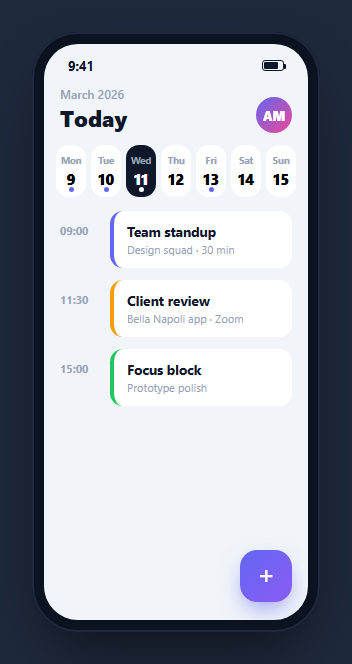
A calendar screen balances two views at once — a compact week strip to pick a day, and an agenda list of that day's events. This snippet builds a complete, interactive one inside a CSS phone frame: tapping a day highlights it, filters the agenda to that day's events, updates the header, and shows a friendly empty state when a day is free — plus a floating add button — in HTML, CSS, and vanilla JavaScript with no dependency.
The week strip with event dots
The seven days sit in an equal-width flex row as pill buttons, each showing the weekday abbreviation and date. Days that have events carry a small dot marker positioned at the bottom, so you can see at a glance which days are busy before selecting them. The selected day flips to a dark pill and its dot turns white to stay visible against the dark background.
Filtering the agenda by day
Every event slot carries a data-for attribute naming its day. Selecting a day loops the slots, showing only matching ones and hiding the rest, and counts how many were shown. This single-source filter means the same event data can drive any day without duplicating markup — you just tag each event with its day and let the selection decide what renders.
Re-triggering the entrance animation
When you switch days, the newly shown slots replay their slide-in animation. Because the elements are only being un-hidden rather than recreated, the code clears the animation, forces a reflow with void slot.offsetWidth, and restores it — the standard trick to restart a CSS animation so each day's agenda animates in fresh rather than appearing statically.
A contextual header and empty state
The header title updates to the selected day, showing "Today" for the current day and the day label otherwise, so the context is always clear. When a selected day has no events, a warm empty-state message appears instead of a blank list — the difference between a screen that feels broken and one that feels considerate.
Color-coded events and a rotating FAB
Events use a colored left border to categorize them, and the floating add button spins slightly on press via a scale-and-rotate transform, the playful touch real calendar apps use for their compose action.
Accessibility and performance
The day strip and the add button are real buttons, so the calendar is keyboard-navigable and screen readers announce each day. When you adapt this, expose the selected day with aria-pressed or aria-current="date" so the active day is announced, and label each day button with its full date rather than just the number so it reads as "Wednesday, March 11" instead of a bare "11". The event dots are decorative, so pair them with text — a count or a label — for non-visual users. Performance is minimal: switching days toggles display on a fixed set of event slots rather than rebuilding the agenda, and the entrance replay is a reflow-triggered CSS animation with no per-frame JavaScript. Because every event is tagged with its day and filtered in place, there is no data cloning or re-render on selection. For a full month or multi-week view with many events, you would render only the visible range, but for a single week the direct show-and-hide keeps the interaction instant and the code easy to follow.
Reusing it
Feed the week and events from your calendar data, render the dot markers from which days have events, and wire the add button to your event composer. Lift it out of the phone frame for a responsive web calendar, or keep it framed beside a horizontal timeline to present a scheduling app.
Build with AI
Build, Understand, Optimize, and Extend It With AI
You don't need to trace the reflow trick from memory to trust it works. Paste this snippet's HTML, CSS, and JS into an AI coding assistant like Claude and ask it to explain exactly why selectDay has to set an event slot's animation to none, read slot.offsetWidth, and only then clear the override to replay the entrance animation, or how the data-for attribute lets one flat list of markup serve every day in the week without duplicating templates. The same assistant is useful for optimizing it — asking whether looping every slot on each day switch scales once a month view has hundreds of events, or whether the filtering logic should move to building a lookup map keyed by day instead of a linear scan. It's just as useful for extending the screen: ask it to compute "Today" dynamically from the real system date instead of hardcoding Wednesday, add drag-to-reschedule for events, or expand the week strip into a swipeable month grid. Treat the code less like a finished artifact and more like a starting point for a conversation.
Prompt to recreate it
Copy this into your AI assistant of choice to build the effect from scratch, or as a jumping-off point for your own variant:
Build a "mobile week-view calendar" inside a CSS phone frame, in plain HTML, CSS, and vanilla JavaScript — no date-picker library, no real calendar API.

Requirements:
- A phone-shaped outer frame containing a scrollable screen with a fake status bar, a header showing a month label and a large title that reflects the currently selected day (e.g. "Today" or the weekday name), and an avatar.
- A row of seven equal-width day pill buttons for the week, each showing an abbreviated weekday and a date number, with one marked active by default. Days that have at least one event must show a small dot marker; the active day's pill and dot must visually invert (e.g. dark background, light dot) compared to inactive days.
- A flat list of event "slot" elements, each tagged with a data attribute naming which day it belongs to (not grouped into per-day containers). A selectDay function must loop over every slot, show only the slots whose day attribute matches the selected day (display: flex) and hide the rest (display: none), count how many were shown, and update the header title and an empty-state message accordingly.
- When a day is selected, the newly visible slots must replay their CSS entrance animation (a fade/slide-in keyframe) even though they were only unhidden, not recreated — do this by clearing the animation property, forcing a synchronous reflow by reading the element's offsetWidth, and then restoring the animation property.
- A friendly empty-state paragraph, hidden by default, that only becomes visible when the selected day has zero matching event slots.
- Each event row shows a time label, a title, a subtitle, and a colored left border indicating its category.
- A floating action button in the bottom-right corner for adding an event, which plays a scale-and-rotate animation via the Web Animations API on click, purely as tap feedback.
Want to tighten it up first? Run this prompt through the AI Prompt Studio to score it across 8 quality dimensions, catch anti-patterns, and tune the wording for Claude, ChatGPT, or Gemini before you paste it in.
Step by step
How to Use
- 1Paste HTML, CSS, and JSA week calendar renders with a day strip and today's agenda already selected.
- 2Read the event dotsDays with events show a small dot so you can spot busy days at a glance.
- 3Tap a different dayThe day highlights, the agenda filters to its events, and they slide in fresh.
- 4Watch the headerThe title updates to the selected day, showing "Today" for the current day.
- 5Find a free daySelect a day with no events and a friendly empty-state message appears.
- 6Tap the add buttonThe floating button spins on press for its compose action.
Real-world uses
Common Use Cases
Got questions?
Frequently Asked Questions
Each event slot has a data-for attribute naming its day. Selecting a day loops all slots and sets display to flex for matches and none for the rest, then counts the matches. Because every event is tagged with its day, one set of markup can serve any day — the selection decides what is visible rather than swapping templates.
The slots are un-hidden rather than recreated, and CSS animations only play on first render. To replay the slide-in, the code sets animation to none, reads slot.offsetWidth to force a reflow, then clears the override. That reflow makes the browser treat the animation as new, so each day's agenda animates in fresh.
The demo treats Wednesday the 11th as the current day, so selecting it sets the title to Today and any other day shows its label. In a real app you would compare the selected date to the actual current date and format the title accordingly.
The filter counts how many slots matched the selected day. If none did, a hidden empty-state message is revealed instead of leaving a blank list. Showing a warm note on free days is a small touch that keeps the screen from looking broken when there is nothing scheduled.
Hold the selected day in state and derive the visible events with a filter in useMemo (React), computed (Vue), or a pipe (Angular) rather than toggling display. Render the day strip and dot markers from your event data. Re-trigger the entrance with a key change keyed to the selected day. The CSS and Tailwind utilities port directly.