Source Code
<div class="qrs-phone">
<div class="qrs-screen">
<div class="qrs-status"><span>9:41</span><span class="qrs-batt"><i></i></span></div>
<header class="qrs-head">
<button class="qrs-close" id="qrsClose" aria-label="Close">×</button>
<h1>Scan QR Code</h1>
<button class="qrs-flash" id="qrsFlash" aria-label="Toggle flashlight">
<svg width="17" height="17" viewBox="0 0 24 24" fill="currentColor"><path d="M11 21h-1l1-7H7.82a1 1 0 01-.99-1.14l1.38-9A1 1 0 019.2 3h6.38a1 1 0 01.99 1.14L15.94 11H19a1 1 0 01.8 1.6l-8 10a1 1 0 01-.8-1.6z"/></svg>
</button>
</header>
<div class="qrs-viewfinder" id="qrsViewfinder">
<div class="qrs-camera-noise"></div>
<div class="qrs-frame">
<span class="qrs-corner qrs-tl"></span>
<span class="qrs-corner qrs-tr"></span>
<span class="qrs-corner qrs-bl"></span>
<span class="qrs-corner qrs-br"></span>
<div class="qrs-scanline" id="qrsScanline"></div>
</div>
<p class="qrs-hint" id="qrsHint">Align QR code within the frame</p>
</div>
<div class="qrs-sheet" id="qrsSheet" hidden>
<div class="qrs-sheet-handle"></div>
<div class="qrs-sheet-icon">🔗</div>
<p class="qrs-sheet-label">Link detected</p>
<p class="qrs-sheet-url" id="qrsUrl">https://northline.app/promo/summer24</p>
<div class="qrs-sheet-actions">
<button class="qrs-btn-primary" id="qrsOpen">Open Link</button>
<button class="qrs-btn-secondary" id="qrsCopy">Copy</button>
</div>
<button class="qrs-scan-again" id="qrsAgain">Scan another code</button>
</div>
</div>
</div>*{box-sizing:border-box;margin:0;padding:0}
html{scrollbar-width:none;-ms-overflow-style:none}
html::-webkit-scrollbar{display:none}
body{font-family:system-ui,-apple-system,sans-serif;background:#1e293b;display:flex;justify-content:center;align-items:center;min-height:100vh;padding:24px;scrollbar-width:none;-ms-overflow-style:none}
body::-webkit-scrollbar{display:none}
.qrs-phone{width:288px;height:600px;background:#0b1220;border-radius:46px;padding:12px;box-shadow:0 30px 60px -20px rgba(0,0,0,.6),inset 0 0 0 2px #1e293b}
.qrs-screen{width:100%;height:100%;border-radius:34px;overflow:hidden;background:#000;color:#fff;display:flex;flex-direction:column;position:relative}
.qrs-status{display:flex;justify-content:space-between;align-items:center;padding:13px 24px 0;font-size:13px;font-weight:700;position:relative;z-index:3}
.qrs-batt{width:22px;height:11px;border:1.4px solid currentColor;border-radius:3px;position:relative;display:inline-block}
.qrs-batt::after{content:'';position:absolute;right:-3px;top:3px;width:2px;height:5px;background:currentColor;border-radius:0 1px 1px 0}
.qrs-batt i{position:absolute;left:1.4px;top:1.4px;bottom:1.4px;width:82%;background:currentColor;border-radius:1px}
.qrs-head{display:flex;align-items:center;justify-content:space-between;padding:10px 16px 14px;position:relative;z-index:3}
.qrs-close{background:rgba(255,255,255,.14);border:none;width:30px;height:30px;border-radius:50%;font-size:18px;color:#fff;cursor:pointer;line-height:1}
.qrs-head h1{font-size:14.5px;font-weight:800}
.qrs-flash{background:rgba(255,255,255,.14);border:none;width:30px;height:30px;border-radius:50%;color:#fff;cursor:pointer;display:flex;align-items:center;justify-content:center;transition:background .15s,color .15s}
.qrs-flash.on{background:#facc15;color:#1c1917}
.qrs-viewfinder{flex:1;position:relative;display:flex;flex-direction:column;align-items:center;justify-content:center;overflow:hidden}
.qrs-camera-noise{position:absolute;inset:0;background:
radial-gradient(circle at 30% 20%, rgba(255,255,255,.05), transparent 40%),
radial-gradient(circle at 70% 75%, rgba(255,255,255,.04), transparent 45%),
#0a0f1a;
}
.qrs-frame{position:relative;width:190px;height:190px;z-index:2}
.qrs-corner{position:absolute;width:30px;height:30px;border:3.5px solid #22c55e}
.qrs-tl{top:0;left:0;border-right:none;border-bottom:none;border-radius:10px 0 0 0}
.qrs-tr{top:0;right:0;border-left:none;border-bottom:none;border-radius:0 10px 0 0}
.qrs-bl{bottom:0;left:0;border-right:none;border-top:none;border-radius:0 0 0 10px}
.qrs-br{bottom:0;right:0;border-left:none;border-top:none;border-radius:0 0 10px 0}
.qrs-scanline{position:absolute;left:6px;right:6px;top:6px;height:2px;background:linear-gradient(90deg,transparent,#22c55e,transparent);box-shadow:0 0 8px 1px rgba(34,197,94,.7);animation:qrsSweep 2s ease-in-out infinite}
@keyframes qrsSweep{0%{top:6px}50%{top:180px}100%{top:6px}}
.qrs-frame.found .qrs-corner{border-color:#facc15}
.qrs-frame.found .qrs-scanline{animation-play-state:paused;background:#facc15;box-shadow:0 0 10px 2px rgba(250,204,21,.8)}
.qrs-hint{margin-top:22px;font-size:12.5px;color:rgba(255,255,255,.75);z-index:2}
.qrs-sheet{position:absolute;left:0;right:0;bottom:0;background:#111827;border-radius:24px 24px 0 0;padding:10px 22px 26px;z-index:5;animation:qrsRise .3s cubic-bezier(.2,.9,.3,1);text-align:center}
@keyframes qrsRise{from{transform:translateY(100%)}to{transform:translateY(0)}}
.qrs-sheet-handle{width:36px;height:4px;background:#374151;border-radius:3px;margin:0 auto 16px}
.qrs-sheet-icon{width:46px;height:46px;border-radius:14px;background:#1e293b;display:flex;align-items:center;justify-content:center;font-size:20px;margin:0 auto 10px}
.qrs-sheet-label{font-size:11.5px;color:#9ca3af;text-transform:uppercase;letter-spacing:.5px;margin-bottom:4px}
.qrs-sheet-url{font-size:13.5px;font-weight:700;color:#fff;margin-bottom:16px;word-break:break-all}
.qrs-sheet-actions{display:flex;gap:8px;margin-bottom:12px}
.qrs-btn-primary{flex:1;background:#22c55e;color:#052e12;border:none;border-radius:12px;padding:12px;font-size:13px;font-weight:800;cursor:pointer;font-family:inherit}
.qrs-btn-secondary{flex:1;background:#1f2937;color:#fff;border:none;border-radius:12px;padding:12px;font-size:13px;font-weight:700;cursor:pointer;font-family:inherit}
.qrs-btn-secondary.copied{background:#16a34a;color:#fff}
.qrs-scan-again{background:none;border:none;color:#60a5fa;font-size:12.5px;font-weight:700;cursor:pointer;font-family:inherit}var viewfinder = document.getElementById('qrsViewfinder');
var frame = document.querySelector('.qrs-frame');
var hint = document.getElementById('qrsHint');
var sheet = document.getElementById('qrsSheet');
var flashBtn = document.getElementById('qrsFlash');
var closeBtn = document.getElementById('qrsClose');
var openBtn = document.getElementById('qrsOpen');
var copyBtn = document.getElementById('qrsCopy');
var againBtn = document.getElementById('qrsAgain');
var urlEl = document.getElementById('qrsUrl');
var scanTimer = null;
function startScanning() {
sheet.hidden = true;
frame.classList.remove('found');
hint.textContent = 'Align QR code within the frame';
clearTimeout(scanTimer);
scanTimer = setTimeout(function () {
frame.classList.add('found');
hint.textContent = 'Code found!';
setTimeout(function () { sheet.hidden = false; }, 350);
}, 2600);
}
flashBtn.addEventListener('click', function () {
flashBtn.classList.toggle('on');
});
closeBtn.addEventListener('click', function () {
hint.textContent = 'Scanner closed';
clearTimeout(scanTimer);
});
openBtn.addEventListener('click', function () {
openBtn.textContent = 'Opening...';
setTimeout(function () { openBtn.textContent = 'Opened'; }, 500);
});
copyBtn.addEventListener('click', function () {
copyBtn.textContent = 'Copied';
copyBtn.classList.add('copied');
setTimeout(function () {
copyBtn.textContent = 'Copy';
copyBtn.classList.remove('copied');
}, 1400);
});
againBtn.addEventListener('click', function () {
openBtn.textContent = 'Open Link';
startScanning();
});
startScanning();Learn Coding Visually
Learn to code with interactive, live-preview playgrounds — HTML, CSS, JavaScript, React & more.
 HTML Playground42 lessons · Click-based · Live preview
 CSS PlaygroundLearn CSS with a live editor
 JavaScript Playground60 lessons · DOM · Async · Canvas
 React PlaygroundLearn React with a live code editor
 GSAP PlaygroundLearn GSAP animation interactively
 SVG Playground44 lessons · shapes · paths · animation
 SCSS Playground45 lessons · Sass modules · tokens
 Tailwind PlaygroundLearn Tailwind CSS with a live editor
 Bootstrap 5 Playground50 lessons · live preview
Mobile QR Code Scanner Screen — Free Snippet
Mobile QR Code Scanner Screen · Mobile · Plain HTML, CSS & JS · Live preview
What's included
Features
About this UI Snippet
Mobile QR Scanner Screen — Sweeping Viewfinder with a Working Result Sheet
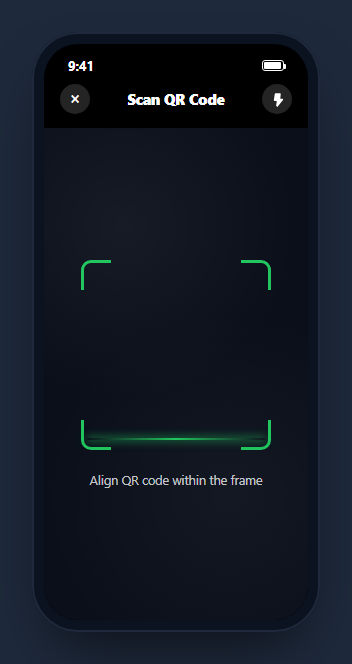
A QR scanner screen has one job: make a camera viewfinder feel alive while it searches for a code, then hand off cleanly to a result once it finds one. Since this snippet runs without real camera access, it builds the entire perceived experience in CSS and JavaScript instead — a dark viewfinder with rounded bracket corners, a sweeping green laser line, a simulated detection after a believable delay, and a bottom sheet with real open and copy actions once a code is found.
A viewfinder built from brackets, not a photo
.qrs-frame is a plain square with four .qrs-corner elements, each drawn with only two visible border sides and a rounded outer corner, positioned at the four corners of the frame. This is the universal visual shorthand for "scan target here" used across every native camera-based scanner, and it reads correctly even with the plain gradient-noise background standing in for a live camera feed.
A scanline that actually sweeps
.qrs-scanline is a thin gradient-glow bar animated with a top keyframe from the top of the frame to the bottom and back, on a 2-second ease-in-out loop. Combined with a soft box-shadow glow, this single element does most of the work of making the viewfinder feel like it is actively searching rather than a static rectangle waiting for something to happen.
A simulated detection with a state change, not just a popup
startScanning() sets a timer that, after roughly 2.6 seconds, adds a .found class to the frame — turning the green corners and scanline yellow and pausing the sweep — before the result sheet rises from the bottom. This two-step handoff (found state, then sheet) mirrors how real scanners visually confirm a lock before presenting the decoded result, rather than jumping straight from "searching" to "here is your data" with no transition.
A bottom sheet with working actions, not a static card
Once revealed, #qrsSheet shows the decoded URL and two real buttons: "Open Link," which shows a brief "Opening..." transitional label, and "Copy," which flips to a "Copied" confirmation state for about a second and a half before reverting. Both model the actual two real actions a user takes after a successful scan — following the link or grabbing it for later — rather than presenting the decoded text as inert.
Flashlight toggle and a real reset path
The flashlight button toggles a visual on/off state (.qrs-flash.on) independent of the scanning logic, matching how a real scanner lets the user turn on the torch at any point without interrupting detection. "Scan another code" calls the exact same startScanning() function used on initial load, resetting the frame's found state, hiding the sheet, and restarting the detection timer — so the whole flow can be repeated indefinitely without a page reload.
Wiring it to a real camera
Replace the CSS gradient-noise background with a live <video> element bound to navigator.mediaDevices.getUserMedia, and swap the fixed setTimeout detection delay for a real decoding library (such as jsQR or the browser's native BarcodeDetector API) running against each video frame — the found-state class toggle and the result-sheet reveal logic need no changes to work with a real decoded payload in place of the demo URL.
Build with AI
Build, Understand, Optimize, and Extend It With AI
Instead of tracing the scan-to-result sequencing by hand, paste this snippet's HTML, CSS, and JS into an AI coding assistant like Claude and ask it to explain exactly how the found state pauses the scanline animation and how the timing between the found state and the sheet reveal was chosen to feel like a real detection lock rather than an instant jump. The same assistant can help you optimize it, for instance asking whether the fixed 2.6-second detection delay should instead be driven by a real decoding library running against actual camera frames. It is also useful for extending the screen: ask it to wire navigator.mediaDevices.getUserMedia and a real QR decoding library into the viewfinder, add haptic-style visual feedback on detection, or support scanning different payload types (Wi-Fi credentials, contact cards, plain text) with type-specific result sheets. Treat the code less like a finished artifact and more like a starting point for a conversation.
Prompt to recreate it
Copy this into your AI assistant of choice to build the effect from scratch, or as a jumping-off point for your own variant:
Build a mobile "QR code scanner" screen in plain HTML, CSS, and JavaScript, framed inside a CSS phone mockup, with a simulated camera viewfinder and a working result sheet, no camera or decoding library required for the demo.

Requirements:
- A dark viewfinder area with a square scan-target frame made of four bracket-style corner marks (two visible border sides each, rounded on the outer corner) and a glowing horizontal scanline that continuously sweeps from the top of the frame to the bottom and back using a CSS keyframe animation.
- After a believable delay (a couple of seconds) following page load, the frame must visibly transition into a "found" state: the corner brackets and scanline change color and the sweep animation pauses, distinct from the ongoing searching state.
- Shortly after entering the found state, a bottom sheet must rise into view from the bottom of the screen showing a detected URL, with a rise-in transform animation rather than an instant appearance.
- The result sheet must include a working "Open Link" button that shows a brief transitional label change on click, a "Copy" button that shows a temporary "Copied" confirmation state before reverting, and a "Scan another code" control that resets the frame back to its searching state and restarts the same detection timer used on initial load.
- A separate flashlight toggle button in the header must switch its own visual on/off state independently of the scanning and found states.
Want to tighten it up first? Run this prompt through the AI Prompt Studio to score it across 8 quality dimensions, catch anti-patterns, and tune the wording for Claude, ChatGPT, or Gemini before you paste it in.
Step by step
How to Use
- 1Paste HTML, CSS, and JSA phone-framed scanner screen renders with the green scanline sweeping inside the bracket corners.
- 2Wait a couple of secondsThe frame turns yellow, the scanline pauses, and a result sheet rises from the bottom.
- 3Tap "Open Link" or "Copy"Each button shows its own brief transitional state before settling.
- 4Tap "Scan another code"The sheet dismisses and the scanning animation restarts from the beginning.
- 5Tap the flashlight iconIt toggles a visual on state independently of the scan cycle.
- 6Wire it to a real cameraSwap the noise background for a live video element and the setTimeout for a real decoding library like jsQR or BarcodeDetector.
Real-world uses
Common Use Cases
Got questions?
Frequently Asked Questions
No — it is a fully simulated UI. The viewfinder background is a CSS gradient standing in for a camera feed, and detection is a fixed setTimeout delay rather than real image analysis. Wire it to navigator.mediaDevices.getUserMedia for a live video feed and a library like jsQR or the native BarcodeDetector API for real decoding.
The .qrs-scanline element is positioned with a top keyframe animation that moves it from the top of the .qrs-frame square to the bottom and back over a 2-second ease-in-out loop, combined with a soft box-shadow glow for visual weight.
startScanning() sets a timer that adds a found class to the frame after roughly 2.6 seconds, which turns the corner brackets and scanline yellow and pauses the sweep animation via animation-play-state, then reveals the result sheet shortly after.
In this demo, it only shows a visual Copied confirmation state for about 1.4 seconds. Wire it to the real navigator.clipboard.writeText API with the actual decoded value to make it functional.
The "Scan another code" button calls the same startScanning() function used on initial page load, which hides the result sheet, removes the found class from the frame, and restarts the detection timer from zero.
Yes. Track a status value (scanning, found, result-shown) in state, run your real decoding logic inside an effect bound to a video element, and set status to found the moment a real decode succeeds instead of after a fixed timeout.