Source Code
<div class="bbtt-demo" id="bbttScrollArea">
<div class="container py-5">
<h5 class="fw-bold">Scroll down inside this box</h5>
<p class="text-muted">The circular button appears in the bottom-right corner once you scroll past 300px, and smoothly scrolls back to the top when clicked.</p>
<div class="bbtt-filler">
<p>Section 1 — keep scrolling to reveal the button.</p>
<p>Section 2 — almost there.</p>
<p>Section 3 — the button should be visible now.</p>
<p>Section 4 — try clicking the button.</p>
<p>Section 5 — it should smoothly scroll you back up.</p>
<p>Section 6 — end of the demo content.</p>
</div>
</div>
<button class="btn btn-dark rounded-circle bbtt-btn" id="bbttButton" aria-label="Back to top">
↑
</button>
</div>.bbtt-demo { position: relative; height: 380px; overflow-y: auto; border: 1px solid #eceef1; border-radius: 14px; }
.bbtt-filler p { padding: 40px 0; border-top: 1px dashed #dee2e6; }
.bbtt-btn { position: sticky; float: right; bottom: 16px; margin-right: 16px; width: 48px; height: 48px; display: flex; align-items: center; justify-content: center; font-size: 1.2rem; opacity: 0; visibility: hidden; transition: opacity 0.25s ease, visibility 0.25s ease; box-shadow: 0 4px 14px rgba(0,0,0,0.25); }
.bbtt-btn.bbtt-visible { opacity: 1; visibility: visible; }const scrollArea = document.getElementById('bbttScrollArea');
const button = document.getElementById('bbttButton');
const SHOW_THRESHOLD = 300;
function handleScroll() {
if (scrollArea.scrollTop > SHOW_THRESHOLD) {
button.classList.add('bbtt-visible');
} else {
button.classList.remove('bbtt-visible');
}
}
scrollArea.addEventListener('scroll', handleScroll);
button.addEventListener('click', () => {
scrollArea.scrollTo({ top: 0, behavior: 'smooth' });
});
handleScroll();Learn Coding Visually
Learn to code with interactive, live-preview playgrounds — HTML, CSS, JavaScript, React & more.
 HTML Playground42 lessons · Click-based · Live preview
 CSS PlaygroundLearn CSS with a live editor
 JavaScript Playground60 lessons · DOM · Async · Canvas
 React PlaygroundLearn React with a live code editor
 GSAP PlaygroundLearn GSAP animation interactively
 SVG Playground44 lessons · shapes · paths · animation
 SCSS Playground45 lessons · Sass modules · tokens
 Tailwind PlaygroundLearn Tailwind CSS with a live editor
 Bootstrap 5 Playground50 lessons · live preview
Bootstrap Back to Top Button — Free HTML CSS JS Snippet
Bootstrap Back to Top Button · Buttons · Plain HTML, CSS & JS · Live preview
What's included
Features
About this UI Snippet
Bootstrap Back to Top Button — HTML, CSS & JavaScript
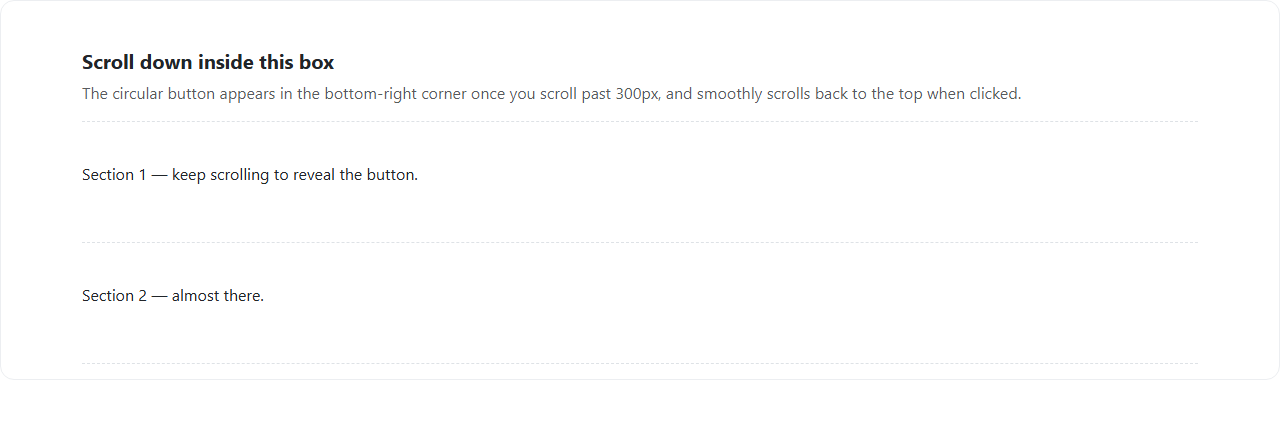
A back-to-top button only feels right if it stays invisible until it's actually useful, and this snippet implements that with a CSS transition plus a single scroll-position check rather than showing the button unconditionally from page load. The button itself is a real Bootstrap btn btn-dark rounded-circle, and its shown/hidden state is controlled entirely by one class, .bbtt-visible, toggled in JavaScript — the CSS handles the actual fade, transitioning both opacity and visibility over 0.25s. Both properties matter together: opacity alone would leave an invisible-but-still-clickable button sitting over the page content when hidden, while visibility alone would make the fade feel like an abrupt cut instead of a smooth fade, so animating both at once gets a real fade that also removes the button from interaction when it is not shown.
handleScroll() is the only logic driving visibility: it reads scrollArea.scrollTop and compares it against a named SHOW_THRESHOLD constant (300, matching the standard 300px convention used across most real-world implementations of this pattern), adding .bbtt-visible past the threshold and removing it otherwise. That function runs on every scroll event and once immediately on load — the immediate call matters as an edge case: without it, a page that loads already scrolled down (for example, returning via browser back/forward navigation with scroll position restored) would show no button at all until the very next scroll event fired, leaving the button incorrectly hidden despite already being past the threshold.
Clicking the button calls scrollArea.scrollTo({ top: 0, behavior: 'smooth' }) — the object-argument form of scrollTo, which is what enables the native smooth-scroll animation, as opposed to the older scrollTo(x, y) signature which jumps instantly with no animation at all. In this snippet the button scrolls a specific scrollable container (#bbttScrollArea, built with overflow-y: auto to keep the demo self-contained on the page), but the identical call against window (window.scrollTo({ top: 0, behavior: 'smooth' })) is exactly how you would wire this to a normal full-page scroll, which the snippet's title and aiPrompt spec around.
The button is positioned with position: sticky combined with a float: right container trick so it stays pinned to the bottom-right corner of the scrollable demo area as you scroll within it, without requiring JavaScript to reposition it on every scroll tick — only the show/hide class is computed in JS, keeping the scroll handler cheap enough to run on every single scroll event with no debouncing needed.
Because the entire behavior is two small event listeners over one boolean-like class and one constant, it ports directly into a React useEffect with a useState boolean for visibility, a Vue ref, or an Angular property bound to a class — with the scroll listener attached to window or a specific container ref and removed in the corresponding cleanup function to avoid a memory leak on unmount.
Build with AI
Build, Understand, Optimize, and Extend It With AI
Ask an AI coding assistant like Claude to add a circular scroll-progress ring around the button that fills as the user scrolls down the page, or to make the threshold a percentage of total page height instead of a fixed pixel value. It's also worth asking it to add a keyboard shortcut (like pressing Home) that triggers the same smooth scroll.
Prompt to recreate it
Copy this into your AI assistant of choice to build the effect from scratch, or as a jumping-off point for your own variant:
Build a Bootstrap 5.3 back-to-top button using the real Bootstrap CDN (bootstrap.min.css and bootstrap.bundle.min.js), not custom CSS made to resemble Bootstrap.

Requirements:
- A fixed-position circular Bootstrap button in the bottom-right corner of the page.
- The button must be hidden (using a transition on both opacity and visibility, not just opacity) until the page is scrolled past a 300px threshold, then fade smoothly into view.
- The visibility check must also run once immediately on script load, so a page that loads already scrolled past the threshold shows the button right away rather than only after the next scroll event.
- Clicking the button must smoothly scroll back to the top of the page using window.scrollTo with the behavior:"smooth" option, not an instant jump.
- The scroll listener should be lightweight, only toggling a single CSS class rather than doing expensive work on every scroll event.
Want to tighten it up first? Run this prompt through the AI Prompt Studio to score it across 8 quality dimensions, catch anti-patterns, and tune the wording for Claude, ChatGPT, or Gemini before you paste it in.
Step by step
How to Use
- 1Load the snippetA scrollable box appears with several sections of filler text; the circular back-to-top button is invisible at the top of the box.
- 2Scroll down inside the boxNothing changes until you pass roughly 300px of scroll, at which point the circular dark button smoothly fades into view in the bottom-right corner.
- 3Scroll back up slightlyOnce you scroll back above the 300px threshold, the button fades back out and becomes non-interactive again.
- 4Scroll down again and click the buttonThe box smoothly animates back to the very top instead of jumping instantly, and the button fades out once the top is reached and you're back under the threshold.
- 5Reload with scroll already past the thresholdThe button appears immediately without needing an extra scroll event, since visibility is also checked once on load.
Real-world uses
Common Use Cases
Got questions?
Frequently Asked Questions
Opacity alone would leave the button at 0% opacity but still technically present and clickable, sitting invisibly on top of whatever content is underneath it; transitioning visibility alongside opacity (over the same 0.25s duration) ensures the button is also removed from the interaction layer once fully faded out, not just visually hidden.
If a page loads with its scroll position already restored past the threshold (common with browser back/forward navigation), relying only on future scroll events would leave the button incorrectly hidden until the next scroll happens; calling it once on load fixes the initial state immediately.
The object-form scrollTo({top, behavior:"smooth"}) is supported in all current major browsers; in the rare case a browser ignores the smooth behavior, the scroll still jumps to the top instantly as a safe fallback rather than failing.
Yes — track visibility in useState/a ref, attach the scroll listener to window or a container ref inside useEffect/onMounted (calling the check once immediately, just like the vanilla version), remove the listener in the cleanup function or ngOnDestroy, and call scrollTo on click exactly the same way.
Replace scrollArea.scrollTop and scrollArea.scrollTo(...) with window.scrollY (or document.documentElement.scrollTop) and window.scrollTo({top:0, behavior:"smooth"}), and attach the scroll listener to window instead of the container element — the rest of the logic is unchanged.
Yes — the btn, rounded-circle classes are purely visual; replace them with Tailwind's rounded-full and background utilities on the same button element, since the show/hide and scroll logic only depends on the .bbtt-visible class and scroll position, not on Bootstrap specifically.