Source Code
<div class="container py-5">
  <table class="table table-hover bssort-table">
    <thead>
      <tr>
        <th class="bssort-col" data-key="name" data-type="text">Customer <span class="bssort-arrow"></span></th>
        <th class="bssort-col" data-key="orders" data-type="num">Orders <span class="bssort-arrow"></span></th>
        <th class="bssort-col" data-key="total" data-type="num">Total spent <span class="bssort-arrow"></span></th>
        <th class="bssort-col" data-key="joined" data-type="date">Joined <span class="bssort-arrow"></span></th>
      </tr>
    </thead>
    <tbody id="bssortBody">
      <tr data-name="Ada Lovelace" data-orders="12" data-total="1240" data-joined="2024-03-14"><td>Ada Lovelace</td><td>12</td><td>$1,240</td><td>2024-03-14</td></tr>
      <tr data-name="Grace Hopper" data-orders="4" data-total="380" data-joined="2025-01-02"><td>Grace Hopper</td><td>4</td><td>$380</td><td>2025-01-02</td></tr>
      <tr data-name="Alan Turing" data-orders="27" data-total="3120" data-joined="2023-08-30"><td>Alan Turing</td><td>27</td><td>$3,120</td><td>2023-08-30</td></tr>
      <tr data-name="Katherine Johnson" data-orders="9" data-total="905" data-joined="2024-11-19"><td>Katherine Johnson</td><td>9</td><td>$905</td><td>2024-11-19</td></tr>
    </tbody>
  </table>
</div>
.bssort-col { cursor: pointer; user-select: none; }
.bssort-col:hover { color: #6366f1; }
.bssort-arrow { font-size: 10px; opacity: .4; }
.bssort-col.bssort-active .bssort-arrow { opacity: 1; color: #6366f1; }const headers = document.querySelectorAll('.bssort-col');
const body = document.getElementById('bssortBody');
let sortKey = null;
let ascending = true;
const GETTERS = {
text: row => row.dataset.name.toLowerCase(),
num: (row, key) => Number(row.dataset[key]),
date: row => new Date(row.dataset.joined).getTime(),
};
headers.forEach(th => {
th.addEventListener('click', () => {
const key = th.dataset.key;
ascending = sortKey === key ? !ascending : true;
sortKey = key;
headers.forEach(h => { h.classList.remove('bssort-active'); h.querySelector('.bssort-arrow').textContent = ''; });
th.classList.add('bssort-active');
th.querySelector('.bssort-arrow').textContent = ascending ? '▲' : '▼';
const type = th.dataset.type;
const rows = Array.from(body.children);
rows.sort((a, b) => {
const va = GETTERS[type](a, key);
const vb = GETTERS[type](b, key);
const cmp = va < vb ? -1 : va > vb ? 1 : 0;
return ascending ? cmp : -cmp;
});
rows.forEach(row => body.appendChild(row));
});
});Learn Coding Visually
Learn to code with interactive, live-preview playgrounds — HTML, CSS, JavaScript, React & more.
 HTML Playground42 lessons · Click-based · Live preview
 CSS PlaygroundLearn CSS with a live editor
 JavaScript Playground60 lessons · DOM · Async · Canvas
 React PlaygroundLearn React with a live code editor
 GSAP PlaygroundLearn GSAP animation interactively
 SVG Playground44 lessons · shapes · paths · animation
 SCSS Playground45 lessons · Sass modules · tokens
 Tailwind PlaygroundLearn Tailwind CSS with a live editor
 Bootstrap 5 Playground50 lessons · live preview
Bootstrap Data Table with Sortable Columns — Free Snippet
Bootstrap Data Table with Sortable Columns · Tables · Plain HTML, CSS & JS · Live preview
What's included
Features
About this UI Snippet
Bootstrap Data Table with Sortable Columns — HTML, CSS & JavaScript
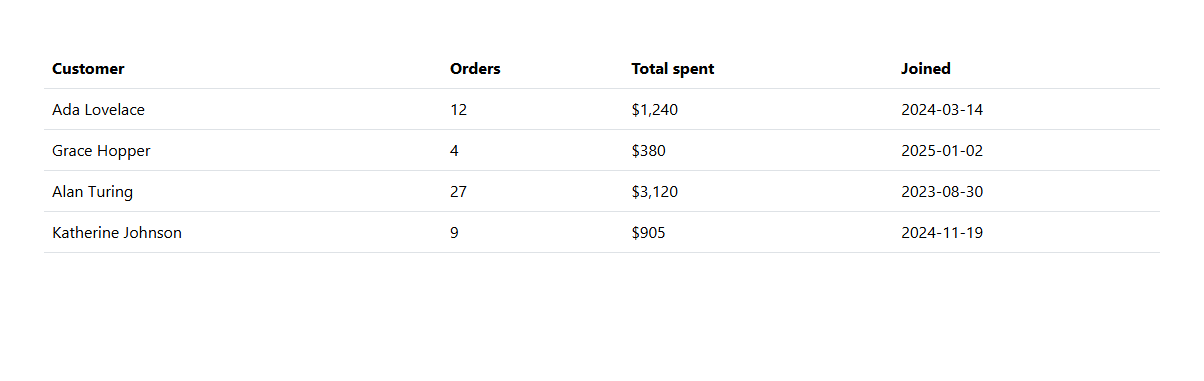
Every column header in this table has a data-type of text, num, or date — the detail that makes the sort actually correct rather than a naive string comparison. Sorting the "Total spent" column as plain text would put $3,120 before $380 (since "3" sorts before "9" in "9" vs "3..."-style string comparison isn't even the issue here — the real trap is comparing formatted currency strings at all). This snippet instead reads each row's raw, unformatted value from a data attribute (data-total="3120") and a per-type GETTERS function converts it correctly — Number() for numeric columns, new Date().getTime() for the date column — before comparing, all built on real Bootstrap 5.3 table markup.
Clicking the same header twice flips between ascending and descending, tracked with one shared ascending boolean reset to true whenever a *different* column is clicked — so switching columns always starts from a predictable ascending sort rather than remembering a stale direction from whichever column was sorted last.
Build with AI
Build, Understand, Optimize, and Extend It With AI
Hand this snippet's HTML, CSS, and JS to an AI coding assistant like Claude and ask it to add a search/filter input above the table that combines with the current sort, or to persist the sort column and direction to localStorage so it's remembered on reload. It's also a good exercise to ask the assistant to add pagination on top of the sorted result set.
Prompt to recreate it
Copy this into your AI assistant of choice to build the effect from scratch, or as a jumping-off point for your own variant:
Build a Bootstrap 5.3 data table with sortable columns, using the real Bootstrap CDN framework (bootstrap.min.css and bootstrap.bundle.min.js), not custom CSS made to resemble Bootstrap.

Requirements:
- A real Bootstrap table with at least four columns of different data types (text, a number, a currency amount, and a date), each row storing its raw unformatted values as data attributes distinct from the formatted text actually displayed in the cells.
- Clicking a column header must sort all rows by that column using a type-appropriate comparison (numeric comparison for numbers/currency, chronological comparison for dates, not plain string comparison of the displayed, formatted text) — implement this via a per-type getter function keyed by a data-type attribute on each header.
- Clicking the same header again must reverse the sort direction (ascending/descending), shown with a visible arrow indicator on the active column; clicking a different header must reset to ascending sort on the new column.
- Sorting must physically reorder the actual table row elements in the DOM, not just change what's visually displayed.
Want to tighten it up first? Run this prompt through the AI Prompt Studio to score it across 8 quality dimensions, catch anti-patterns, and tune the wording for Claude, ChatGPT, or Gemini before you paste it in.
Step by step
How to Use
- 1Load the snippetClick the snippet in the sidebar Library tab. The preview loads a 4-row customer table in its original order.
- 2Click "Total spent"Rows sort ascending by spend, with an up arrow on the header confirming the direction.
- 3Click "Total spent" againThe sort reverses to descending — highest spender first.
- 4Click "Joined"Sorts correctly by actual date order, not by the displayed text string.
- 5Add a fifth rowAdd a <tr> with matching data-name/orders/total/joined attributes — it sorts correctly with the rest automatically.
Real-world uses
Common Use Cases
Got questions?
Frequently Asked Questions
Visible text like "$1,240" or "2024-03-14" doesn't sort correctly as a plain string — currency symbols and formatting break numeric ordering, and date strings only sort correctly by coincidence in the ISO format used here. Each row instead carries its raw, unformatted value in a data attribute, which is what actually gets compared.
An ascending boolean flips every time the same column's key is clicked again; clicking a different column resets it back to true (ascending), so direction never carries over unexpectedly between columns.
It reorders the real DOM elements — body.appendChild(row) on a row already in the table moves it to the new position, so the genuine row order (and reading/tab order) changes, not just a visual rearrangement.
Add a new <th> with a data-key, a data-type (text/num/date), and a matching data attribute on every row holding that column's raw value — the click handler and GETTERS object already handle any column following this convention.
Yes — add a new getter function to the GETTERS object (e.g. mapping status strings to a priority number) and reference it via a new data-type value on that column's header.