Source Code
<div class="container py-5">
  <div class="d-flex justify-content-between align-items-center mb-4">
    <h1 class="bsteam-title mb-0">Meet the team</h1>
    <div class="btn-group btn-group-sm" role="group" id="bsteamFilter">
      <button type="button" class="btn btn-dark" data-dept="all">All</button>
      <button type="button" class="btn btn-outline-dark" data-dept="eng">Engineering</button>
      <button type="button" class="btn btn-outline-dark" data-dept="design">Design</button>
    </div>
  </div>
  <div class="row g-4" id="bsteamGrid">
    <div class="col-sm-6 col-lg-3 bsteam-card" data-dept="eng">
      <div class="card h-100 text-center"><div class="card-body">
        <div class="bsteam-avatar mx-auto" style="--h:230">DR</div>
        <h6 class="mb-0 mt-2">Dana Reyes</h6><p class="text-muted small mb-2">Engineering Lead</p>
        <div class="d-flex justify-content-center gap-2"><a href="javascript:void(0)" class="bsteam-social">in</a><a href="javascript:void(0)" class="bsteam-social">𝕏</a></div>
      </div></div>
    </div>
    <div class="col-sm-6 col-lg-3 bsteam-card" data-dept="design">
      <div class="card h-100 text-center"><div class="card-body">
        <div class="bsteam-avatar mx-auto" style="--h:20">MC</div>
        <h6 class="mb-0 mt-2">Marcus Chen</h6><p class="text-muted small mb-2">Product Designer</p>
        <div class="d-flex justify-content-center gap-2"><a href="javascript:void(0)" class="bsteam-social">in</a><a href="javascript:void(0)" class="bsteam-social">𝕏</a></div>
      </div></div>
    </div>
    <div class="col-sm-6 col-lg-3 bsteam-card" data-dept="eng">
      <div class="card h-100 text-center"><div class="card-body">
        <div class="bsteam-avatar mx-auto" style="--h:150">PN</div>
        <h6 class="mb-0 mt-2">Priya Nair</h6><p class="text-muted small mb-2">Backend Engineer</p>
        <div class="d-flex justify-content-center gap-2"><a href="javascript:void(0)" class="bsteam-social">in</a><a href="javascript:void(0)" class="bsteam-social">𝕏</a></div>
      </div></div>
    </div>
    <div class="col-sm-6 col-lg-3 bsteam-card" data-dept="design">
      <div class="card h-100 text-center"><div class="card-body">
        <div class="bsteam-avatar mx-auto" style="--h:300">TW</div>
        <h6 class="mb-0 mt-2">Talia Wu</h6><p class="text-muted small mb-2">Brand Designer</p>
        <div class="d-flex justify-content-center gap-2"><a href="javascript:void(0)" class="bsteam-social">in</a><a href="javascript:void(0)" class="bsteam-social">𝕏</a></div>
      </div></div>
    </div>
  </div>
</div>
.bsteam-title { font-weight: 800; letter-spacing: -0.01em; }
.bsteam-avatar {
width: 64px; height: 64px; border-radius: 50%;
background: linear-gradient(135deg, hsl(calc(var(--h)) 65% 60%), hsl(calc(var(--h) + 40) 65% 45%));
color: #fff; display: flex; align-items: center; justify-content: center; font-weight: 700;
}
.bsteam-social { color: #6b7280; text-decoration: none; font-size: 13px; width: 26px; height: 26px; border-radius: 50%; border: 1px solid #e5e7eb; display: flex; align-items: center; justify-content: center; }
.bsteam-social:hover { color: #6366f1; border-color: #6366f1; }
.bsteam-card { transition: opacity .15s; }
.bsteam-card.bsteam-hidden { display: none; }const filterBar = document.getElementById('bsteamFilter');
const cards = document.querySelectorAll('.bsteam-card');
filterBar.addEventListener('click', e => {
const btn = e.target.closest('button');
if (!btn) return;
filterBar.querySelectorAll('button').forEach(b => { b.classList.remove('btn-dark'); b.classList.add('btn-outline-dark'); });
btn.classList.add('btn-dark');
btn.classList.remove('btn-outline-dark');
const dept = btn.dataset.dept;
cards.forEach(card => {
card.classList.toggle('bsteam-hidden', dept !== 'all' && card.dataset.dept !== dept);
});
});Learn Coding Visually
Learn to code with interactive, live-preview playgrounds — HTML, CSS, JavaScript, React & more.
 HTML Playground42 lessons · Click-based · Live preview
 CSS PlaygroundLearn CSS with a live editor
 JavaScript Playground60 lessons · DOM · Async · Canvas
 React PlaygroundLearn React with a live code editor
 GSAP PlaygroundLearn GSAP animation interactively
 SVG Playground44 lessons · shapes · paths · animation
 SCSS Playground45 lessons · Sass modules · tokens
 Tailwind PlaygroundLearn Tailwind CSS with a live editor
 Bootstrap 5 Playground50 lessons · live preview
Bootstrap Team Member Card Grid — Free Snippet
Bootstrap Team Member Card Grid · Cards · Plain HTML, CSS & JS · Live preview
What's included
Features
About this UI Snippet
Bootstrap Team Member Card Grid — HTML, CSS & JavaScript
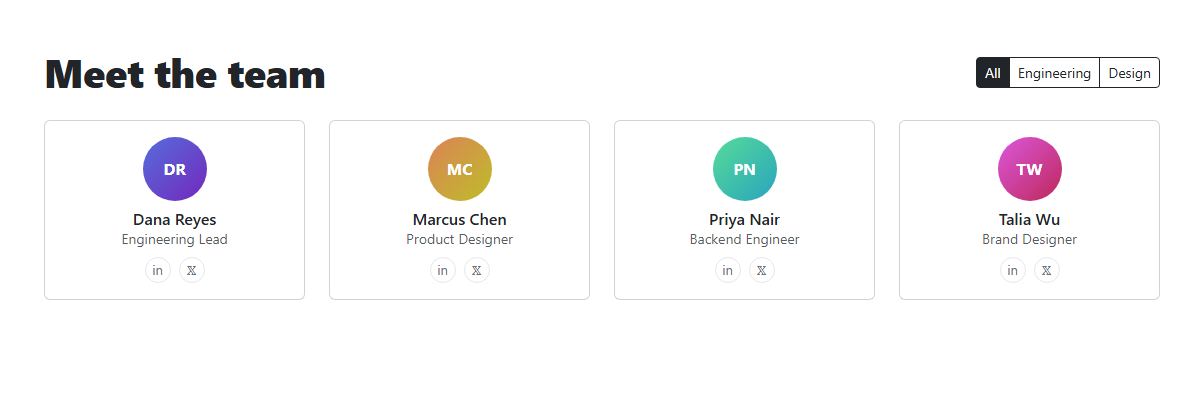
An "about" or careers page's team section benefits from letting visitors narrow a large team down by department, rather than scrolling past everyone. This snippet builds the grid on real Bootstrap 5.3 — the actual .card component in a responsive row/col-lg-3 grid — with a real Bootstrap btn-group acting as the department filter.
Each team card carries a data-dept attribute; clicking a filter button reads its own data-dept, restyles itself as the active choice (swapping btn-dark/btn-outline-dark), and hides every card whose department doesn't match — "All" simply matches everything. The avatars are CSS gradients keyed off a per-card hue custom property, so the grid works immediately with no headshot photography required.
Build with AI
Build, Understand, Optimize, and Extend It With AI
Hand this snippet's HTML, CSS, and JS to an AI coding assistant like Claude and ask it to add a search box that combines with the department filter (both conditions must match), or to animate the filtered-out cards with a fade instead of an instant display:none. It's also a good exercise to ask the assistant to load team member data from a JSON array and render the cards dynamically.
Prompt to recreate it
Copy this into your AI assistant of choice to build the effect from scratch, or as a jumping-off point for your own variant:
Build a Bootstrap 5.3 team member card grid with a department filter, using the real Bootstrap CDN framework (bootstrap.min.css and bootstrap.bundle.min.js), not custom CSS made to resemble Bootstrap.

Requirements:
- A responsive grid of at least four team member cards using Bootstrap's real card component and grid classes, each with a CSS-gradient avatar (no external images required), name, role, and two social link icons, tagged with a data-dept attribute (e.g. "eng" or "design").
- A Bootstrap btn-group of filter buttons ("All" plus one per department) above the grid.
- Clicking a filter button must restyle itself as the active selection using Bootstrap's button variant classes (not just a custom class), and show only the team cards whose data-dept matches (or show all cards when "All" is selected) — hiding non-matching cards entirely.
- The filtering and active-button logic must scale to any number of departments and team cards added later, without hardcoding a department count.
Want to tighten it up first? Run this prompt through the AI Prompt Studio to score it across 8 quality dimensions, catch anti-patterns, and tune the wording for Claude, ChatGPT, or Gemini before you paste it in.
Step by step
How to Use
- 1Load the snippetClick the snippet in the sidebar Library tab. The preview loads four team cards with an "All" filter active.
- 2Click "Engineering"Only the two engineering team members stay visible; the design cards hide.
- 3Click "Design"The filter switches — design cards show, engineering cards hide.
- 4Click "All"Every card is visible again.
- 5Add a new departmentAdd a button with a new data-dept value to the filter group, and give matching cards that same data-dept.
Real-world uses
Common Use Cases
Got questions?
Frequently Asked Questions
The button group is Bootstrap's real btn-group component; the filtering logic itself (comparing data-dept attributes and toggling visibility) is custom JavaScript layered on top, since Bootstrap has no built-in filtering component.
Add a new filter button with a data-dept value, and set that same value as the data-dept attribute on any team cards belonging to it — the existing click handler picks up the new button automatically.
No — each is a CSS linear-gradient generated from a --h hue custom property set per card, so the grid works immediately. Replace .bsteam-avatar's background with a real photo when available.
No — clicking a filter button clears the active style from every other button first, so exactly one department (or "All") is selected at a time.
They're placeholder anchors (javascript:void(0)) — set their href to real LinkedIn/X profile URLs for actual links.