Source Code
<div class="asb-row" id="asbRow">
  <div class="asb-card" data-monthly="12" data-annual="108">
    <span class="asb-badge"></span>
    <h4>Starter</h4>
    <div class="asb-price"><b>$12</b><small>/mo</small></div>
    <p class="asb-annual"></p>
  </div>

  <div class="asb-card asb-featured" data-monthly="29" data-annual="228">
    <span class="asb-badge"></span>
    <h4>Pro</h4>
    <div class="asb-price"><b>$29</b><small>/mo</small></div>
    <p class="asb-annual"></p>
  </div>

  <div class="asb-card" data-monthly="79" data-annual="758">
    <span class="asb-badge"></span>
    <h4>Team</h4>
    <div class="asb-price"><b>$79</b><small>/mo</small></div>
    <p class="asb-annual"></p>
  </div>
</div>*{box-sizing:border-box;margin:0;padding:0}
body{font-family:system-ui,-apple-system,sans-serif;background:#0a0c14;min-height:100vh;display:flex;align-items:center;justify-content:center;padding:24px}
.asb-row{display:flex;gap:16px;flex-wrap:wrap;justify-content:center;max-width:760px}
.asb-card{position:relative;background:#11141f;border:1px solid #232840;border-radius:16px;padding:22px 20px;width:210px;text-align:center;overflow:visible}
.asb-featured{border-color:#f59e0b;background:linear-gradient(165deg,#1b1810,#141319)}
.asb-badge{display:inline-block;font-size:10.5px;font-weight:800;color:#052e16;background:#4ade80;padding:4px 10px;border-radius:999px;margin-bottom:12px;letter-spacing:.02em}
.asb-featured .asb-badge{background:#fbbf24;color:#3b2504}
.asb-card h4{font-size:14px;font-weight:700;color:#dfe2f5;margin-bottom:10px;text-transform:uppercase;letter-spacing:.04em}
.asb-price{display:flex;align-items:baseline;justify-content:center;gap:3px;margin-bottom:10px}
.asb-price b{font-size:32px;font-weight:800;color:#fff}
.asb-price small{font-size:12px;color:#7a8099}
.asb-annual{font-size:11.5px;color:#7a8099}var cards = document.querySelectorAll('.asb-card');
function fmtMoney(n) {
return '$' + n.toLocaleString(undefined, { minimumFractionDigits: 0, maximumFractionDigits: 2 });
}
cards.forEach(function (card) {
var monthly = Number(card.dataset.monthly);
var annual = Number(card.dataset.annual);
// What a full year would cost if billed monthly, every month.
var monthlyYearCost = monthly * 12;
var savings = monthlyYearCost - annual;
var savingsPct = Math.round((savings / monthlyYearCost) * 100);
var badge = card.querySelector('.asb-badge');
var annualLine = card.querySelector('.asb-annual');
if (savings > 0) {
badge.textContent = 'Save ' + fmtMoney(savings) + '/yr (' + savingsPct + '%)';
annualLine.textContent = fmtMoney(annual) + ' billed annually';
} else {
badge.textContent = 'Best value';
annualLine.textContent = fmtMoney(annual) + ' billed annually';
}
});Learn Coding Visually
Learn to code with interactive, live-preview playgrounds — HTML, CSS, JavaScript, React & more.
 HTML Playground42 lessons · Click-based · Live preview
 CSS PlaygroundLearn CSS with a live editor
 JavaScript Playground60 lessons · DOM · Async · Canvas
 React PlaygroundLearn React with a live code editor
 GSAP PlaygroundLearn GSAP animation interactively
 SVG Playground44 lessons · shapes · paths · animation
 SCSS Playground45 lessons · Sass modules · tokens
 Tailwind PlaygroundLearn Tailwind CSS with a live editor
 Bootstrap 5 Playground50 lessons · live preview
Annual Savings Badge — Free "Save $X/Year" Pricing Callout (HTML/CSS/JS)
Annual Savings Badge · Pricing · Plain HTML, CSS & JS · Live preview
What's included
Features
About this UI Snippet
Annual Savings Badge — A "Save $X/Year" Callout Computed From Real Prices
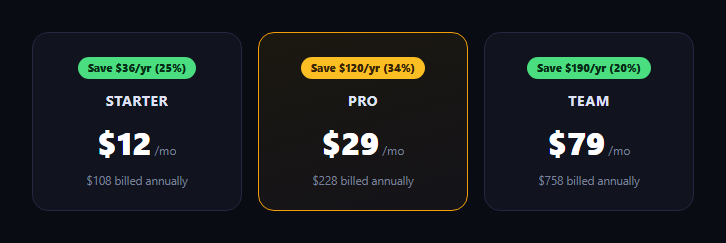
A pricing card that just says "save on annual billing" without a number is easy to skim past — the badge that actually states a dollar figure and a percentage is what makes someone pause. This snippet builds that badge as a small, reusable component that computes its own numbers from two data attributes — a monthly price and an annual-equivalent price — so the same markup works correctly across cards with completely different price points.
Two numbers in, everything derived
Each card carries only data-monthly and data-annual attributes — the two real prices a business actually sets. The script computes what a full year would cost paying monthly every month (monthly * 12), subtracts the annual price to get the dollar savings, and divides that by the monthly-year cost to get a percentage, rounded to a whole number. Nothing about the savings figure is typed by hand, so the badge can never drift out of sync with the underlying prices.
Verified across three different price points
Starter is $12/mo vs. $108/yr: paying monthly all year would cost $144, so the badge shows *Save $36/yr (25%)*. Pro is $29/mo vs. $228/yr: monthly-all-year is $348, savings is $120, which is *Save $120/yr (34%)*. Team is $79/mo vs. $758/yr: monthly-all-year is $948, savings is $190, which is *Save $190/yr (20%)*. Each card's percentage is genuinely different because each plan's discount is genuinely different — the badge never shows a single hardcoded "20% off" banner across cards with unrelated actual discounts.
A fallback for zero or negative savings
If annual were ever equal to or greater than monthly * 12 — a data-entry mistake, or a plan with no annual discount — the badge falls back to a neutral "Best value" label instead of showing a nonsensical "Save $0/yr (0%)" or a negative number, so the component degrades gracefully rather than displaying broken math.
A tiny, composable piece
The badge is deliberately just a span plus one line of annual-billing text — it doesn't own the plan's full price display, name, or feature list, so it drops into an existing pricing card or sits beside a pricing toggle without restructuring the rest of the card.
Where it fits
Use it inside a pricing card grid, next to a monthly/annual pricing toggle, or paired with a flip pricing card that reveals the annual price on flip.
Customizing it
Swap in your own monthly and annual prices per card — the math updates automatically. Add a currency symbol variant, or switch the badge to always show percentage-only or dollar-only depending on which number tests better for your audience.
Build with AI
Build, Understand, Optimize, and Extend It With AI
You don't have to re-derive the savings math by hand. Paste this snippet's HTML, CSS, and JS into an AI coding assistant like Claude and ask it to walk through exactly how the badge computes monthly × 12 as the "if billed monthly all year" baseline, subtracts the real annual price to get dollar savings, and divides that by the same baseline to get a percentage — and why each of the three example cards produces a genuinely different percentage rather than a single shared number. The same assistant can help you extend it: ask how to add a fallback for when annual pricing isn't discounted at all (so the badge shows something other than broken math), how to make the badge switch between showing dollars-only, percent-only, or both based on a data attribute, or how to animate the number counting up when the card scrolls into view. Treat the code less like a finished artifact and more like a starting point for a conversation.
Prompt to recreate it
Copy this into your AI assistant of choice to build the effect from scratch, or as a jumping-off point for your own variant:
Build a reusable "annual savings badge" component in plain HTML, CSS, and JavaScript with no framework or library, demonstrated on three example pricing cards with different price points.

Requirements:
- Each pricing card should store only two real inputs as data attributes: a monthly price and an annual-equivalent price (what a full year actually costs if paid annually).
- Write a script that, for each card, computes what a full year would cost if paid monthly every month (monthly price × 12), subtracts the actual annual price to get a dollar savings amount, and divides that savings by the monthly-year cost to get a percentage, rounded to a whole number — then renders both the dollar figure and the percentage into a badge on that card (e.g. "Save $120/yr (34%)").
- Use at least three example cards with genuinely different monthly and annual prices so the computed savings amount and percentage are visibly different per card — do not reuse one hardcoded percentage across all cards.
- Before finalizing, manually verify each card's arithmetic: monthly × 12 minus annual should equal the displayed dollar savings, and that savings divided by (monthly × 12) should equal the displayed percentage within normal rounding.
- Add a fallback: if the annual price is equal to or greater than monthly × 12 (no real discount, or bad data), show a neutral label like "Best value" instead of a "Save $0/yr (0%)" or negative-number badge.
- Keep the badge itself a small, self-contained piece of markup (not tied to a specific card layout) so it could be copied into an existing pricing card design.
Want to tighten it up first? Run this prompt through the AI Prompt Studio to score it across 8 quality dimensions, catch anti-patterns, and tune the wording for Claude, ChatGPT, or Gemini before you paste it in.
Step by step
How to Use
- 1Paste HTML, CSS, and JSThree example cards render, each with its own computed badge.
- 2Check the numbersStarter shows Save $36/yr (25%); Pro shows Save $120/yr (34%).
- 3Edit the data attributesChange data-monthly or data-annual on any card.
- 4Watch the badge updateThe dollar amount and percentage recompute from the new prices.
- 5Try a losing caseSet annual equal to monthly × 12 — the badge shows "Best value" instead of $0.
- 6Drop it into a real cardReuse just the badge span inside your existing pricing card markup.
Real-world uses
Common Use Cases
Got questions?
Frequently Asked Questions
The script computes what a full year would cost if billed monthly every month (monthly × 12), then subtracts the actual annual price. For Pro at $29/mo vs. $228/yr, that's $29 × 12 = $348 for monthly-all-year, minus $228, which is $120 in savings — exactly what the badge shows.
Savings dollars divided by the monthly-all-year cost, rounded to the nearest whole percent. Starter's $36 savings over a $144 monthly-year cost is 25%; Pro's $120 over $348 is about 34.5%, rounded to 34%; Team's $190 over $948 is about 20.0%, rounded to 20%. Each plan has its own real discount, so the percentages are correctly different, not copy-pasted.
If the annual price is equal to or greater than monthly × 12, savings comes out to zero or negative. Rather than displaying "Save $0/yr (0%)" or a nonsensical negative number, the badge falls back to a neutral "Best value" label so the component never shows broken math.
Yes — the badge is a small, self-contained span plus one line of annual-billing text driven entirely by two data attributes on its parent card. It doesn't assume anything about the rest of the card's markup, so you can copy just .asb-badge and its script logic into an existing card layout.
Pass monthly and annual as props to a Badge component, and compute savings and savingsPct with useMemo or a computed property rather than reading data attributes. The comparison-and-fallback logic (falling back to "Best value" when savings <= 0) copies over unchanged.